Jira cost tracking and budget management: from logged hours to real numbers

Every client project has that one status call where someone asks, “So, are we on budget?”, and in a lot of teams we work with, the person answering is a PM who spent the night before exporting worklogs and fixing a VLOOKUP. Jira will happily tell you that the team spent 37 hours and 20 minutes on the checkout page, and then go quiet when you ask what that cost is, so the Jira budget ends up in a spreadsheet on someone's laptop, about as fresh as the last export.
We wrote this for project managers and delivery leads who'd like to answer that status-call question with real numbers on project costs, without rebuilding the sheet every Thursday night. We'll go through what cost tracking means for a Jira team, what Jira data already gives you, how to calculate cost from logged hours, a simple way to do budget tracking in Jira by hand, and where an app takes over once the spreadsheet stops keeping up.
What cost tracking in Jira actually means
Cost tracking means knowing what a project costs while it's still running so you can make informed decisions based on numbers. Good project budget tracking answers three plain questions: how much did we plan to spend, how much have we spent so far, and what's left? Put next to what the client pays, it also becomes a simple form of value management, because you see what the team's hours actually bring in. That's why good project management needs money in the picture at all, since project success on client work often comes down to catching an overrun while it's still small.
Direct costs, indirect costs, and labor costs
Direct costs belong to one project, like the people working on it, a contractor hired for it, or a license bought just for it. Indirect costs are shared by the whole company, things like rent, management time, and the tools everyone uses, and they're real money, but hard to pin to a single Jira project, so most teams keep them out of project numbers and note that they did.
For software and services teams, labor costs are usually the biggest line in the budget, and they're simple to define: hours worked multiplied by an hourly rate. Everything else, travel, hardware, or an outside designer on a fixed fee, goes under project expenses, and costs and expenses together make up the project budget. Since the hours are already logged in Jira, labor is where Jira cost tracking starts for almost every team we talk to, and often where it stays.
What Jira data gives you natively
Jira is a powerful tool for tracking work and surprisingly quiet about money. In Jira Cloud, you get the raw material for cost tracking and none of the math.
Time tracking is the foundation. Team members log time on a work item, and each worklog stores who logged it, when the work started, and how long it took, in seconds under the hood.
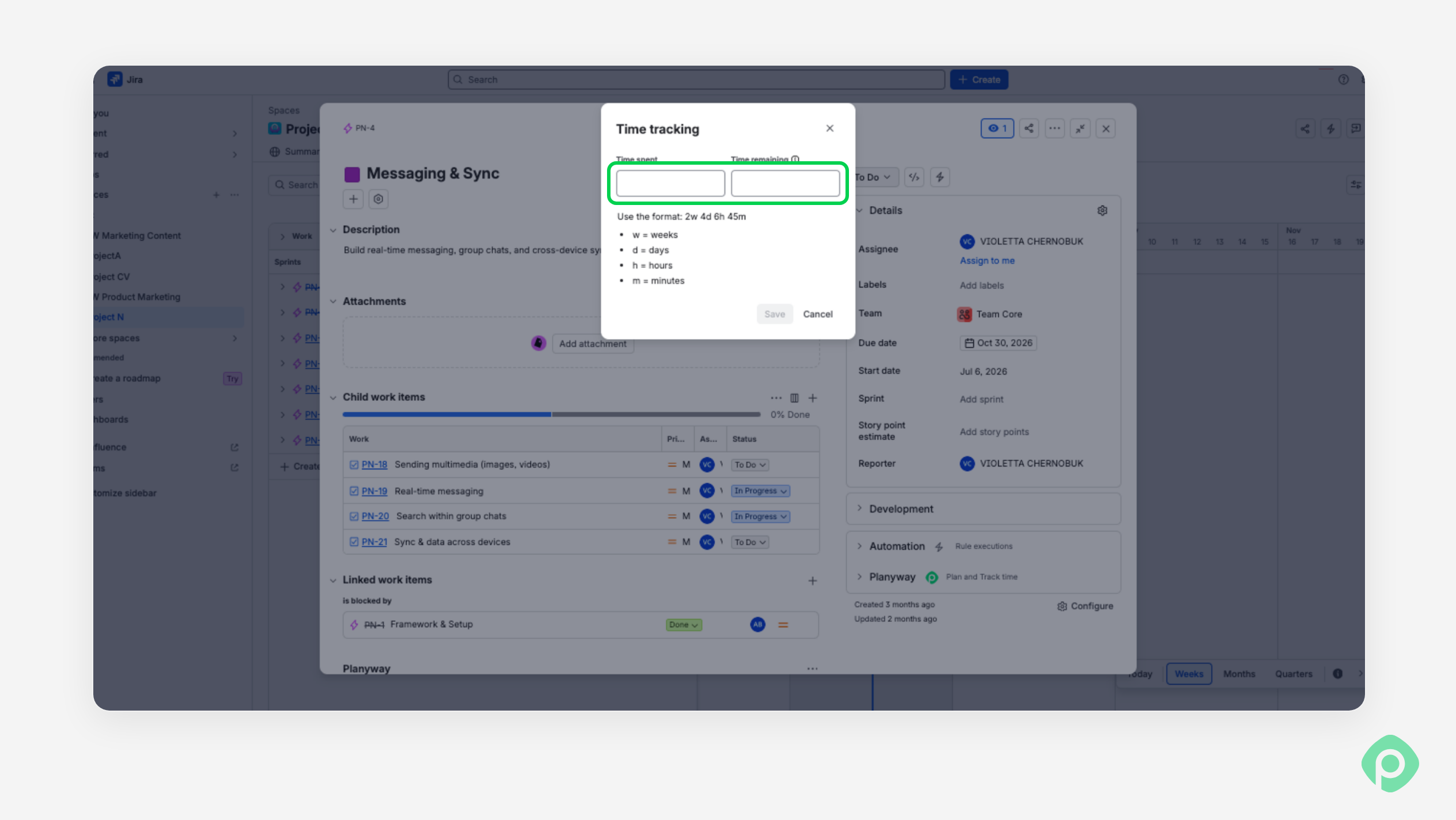
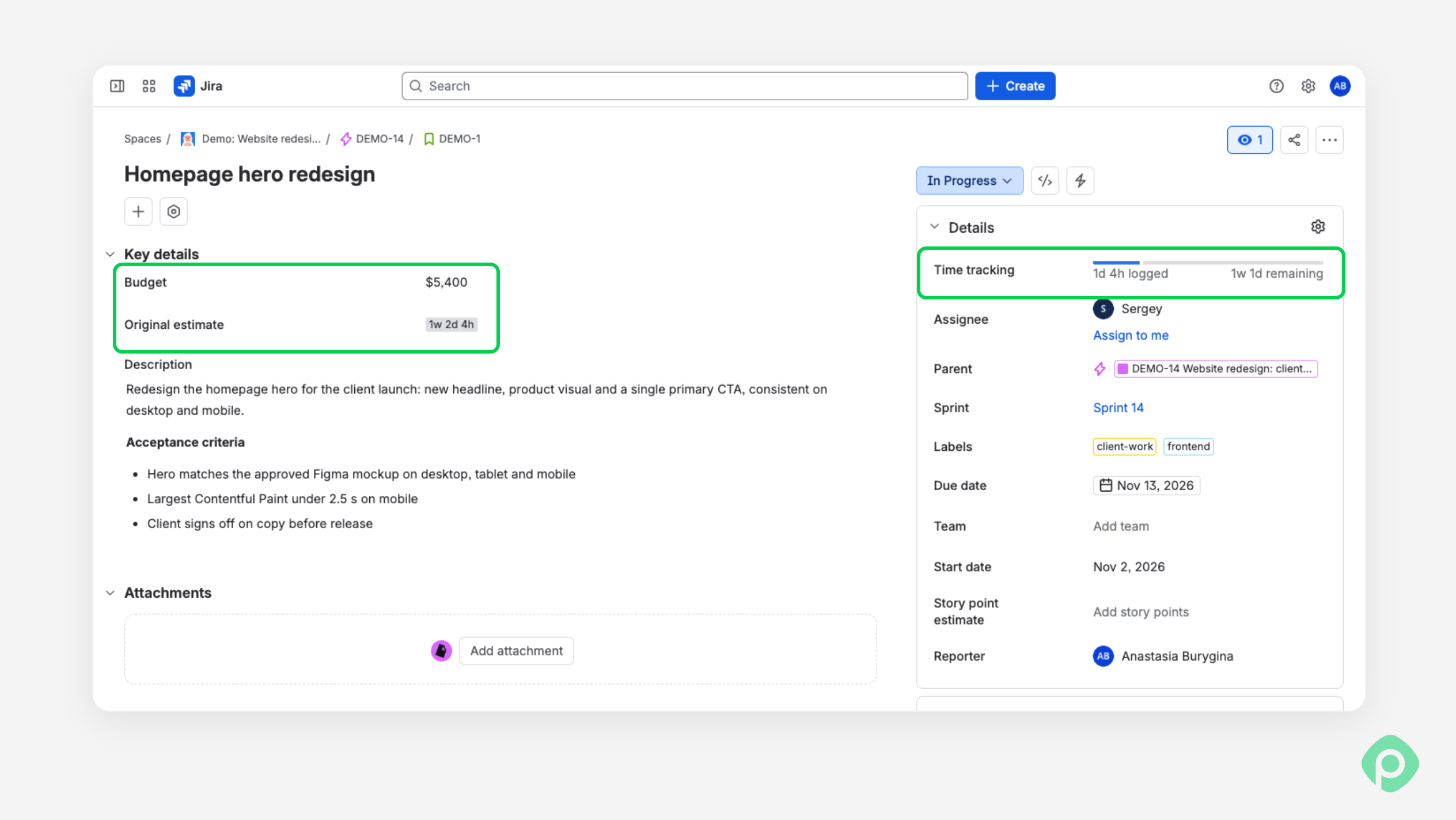
Original and remaining estimates give you a planned number to compare against, and if you want a budget per individual task or epic, you can add a number field and type it in yourself.
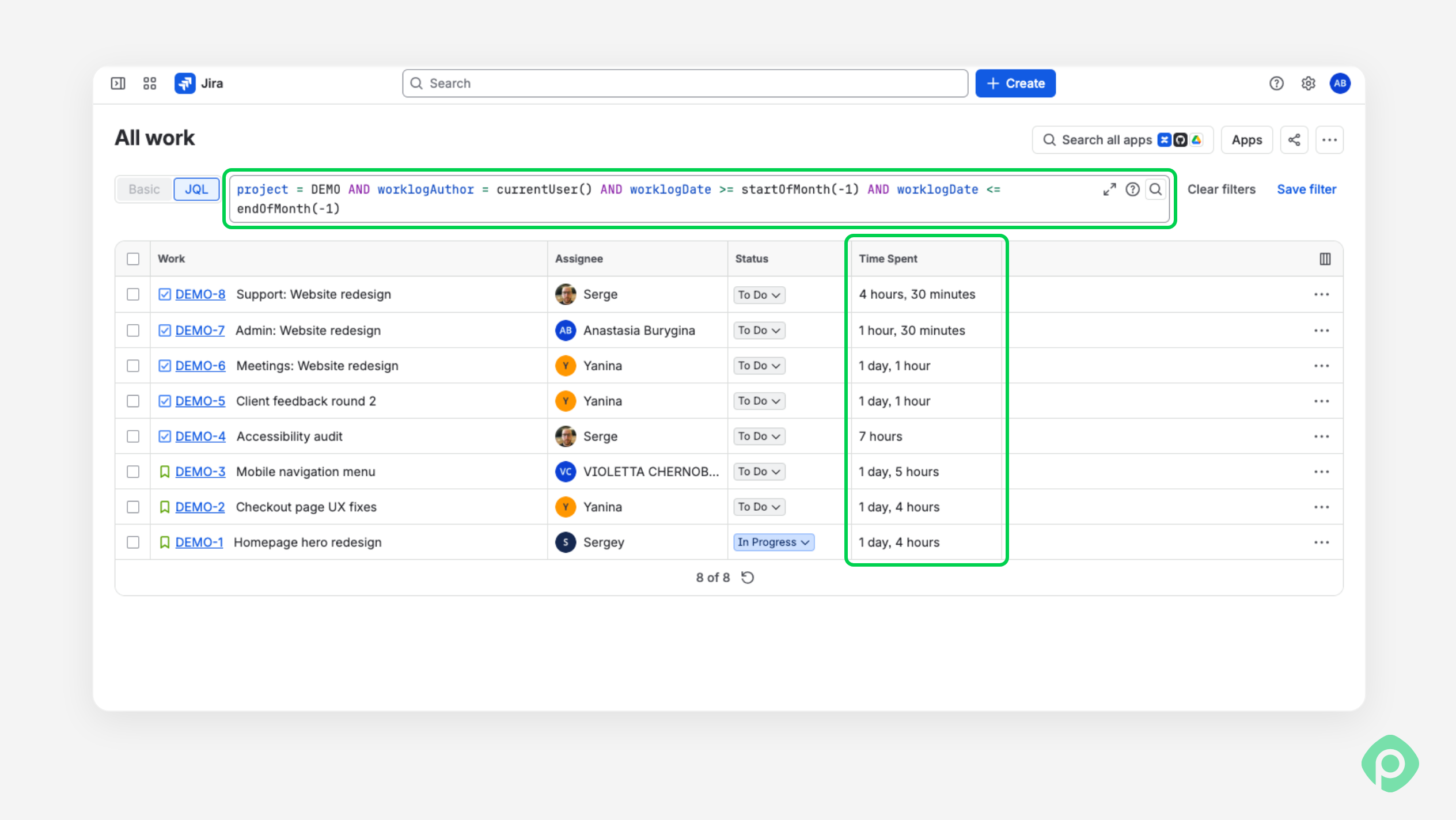
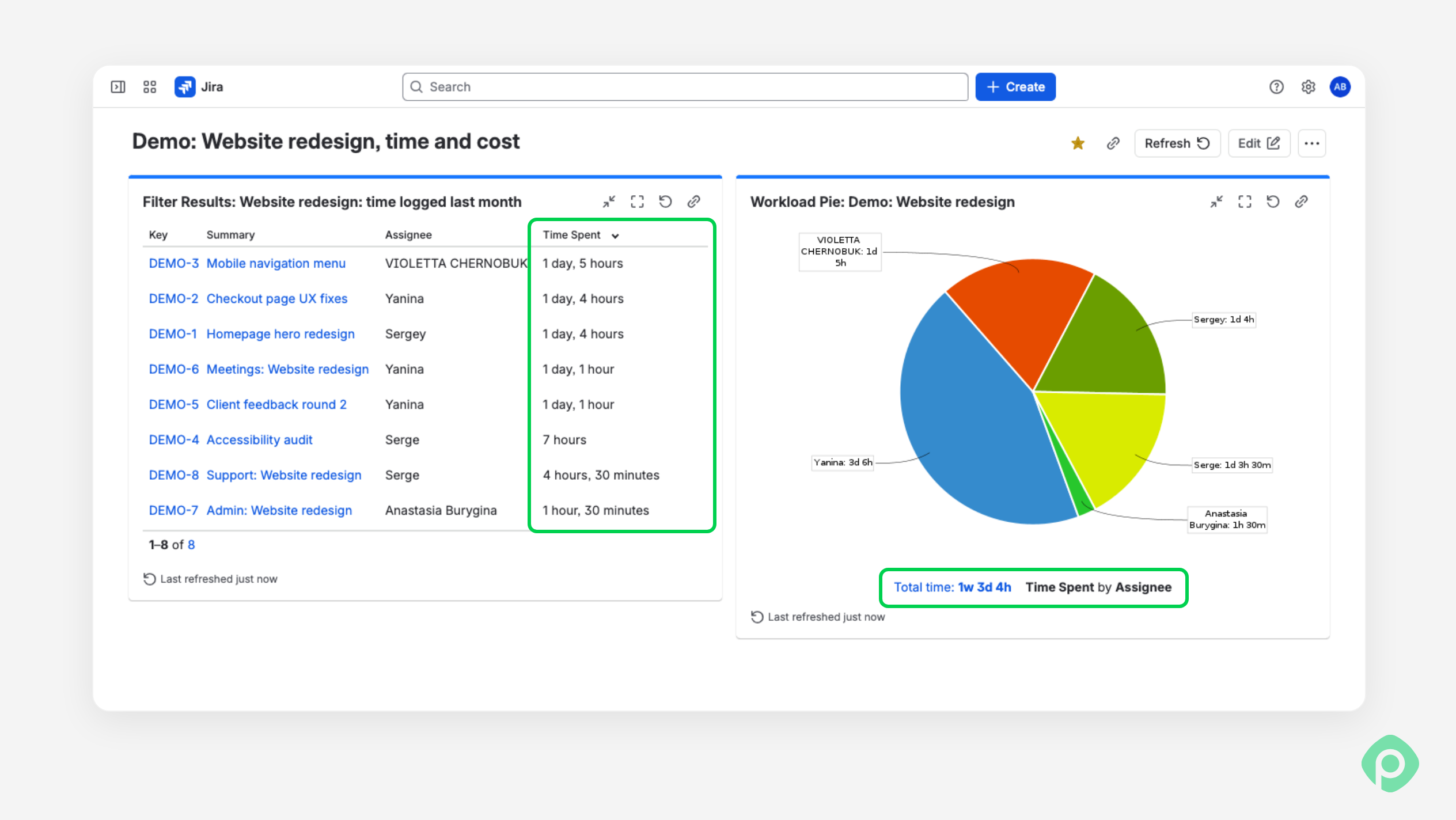
For reporting, there's JQL, which can pull up everything Anna logged on the redesign last month, and a dashboard gadget or two with charts of time spent.
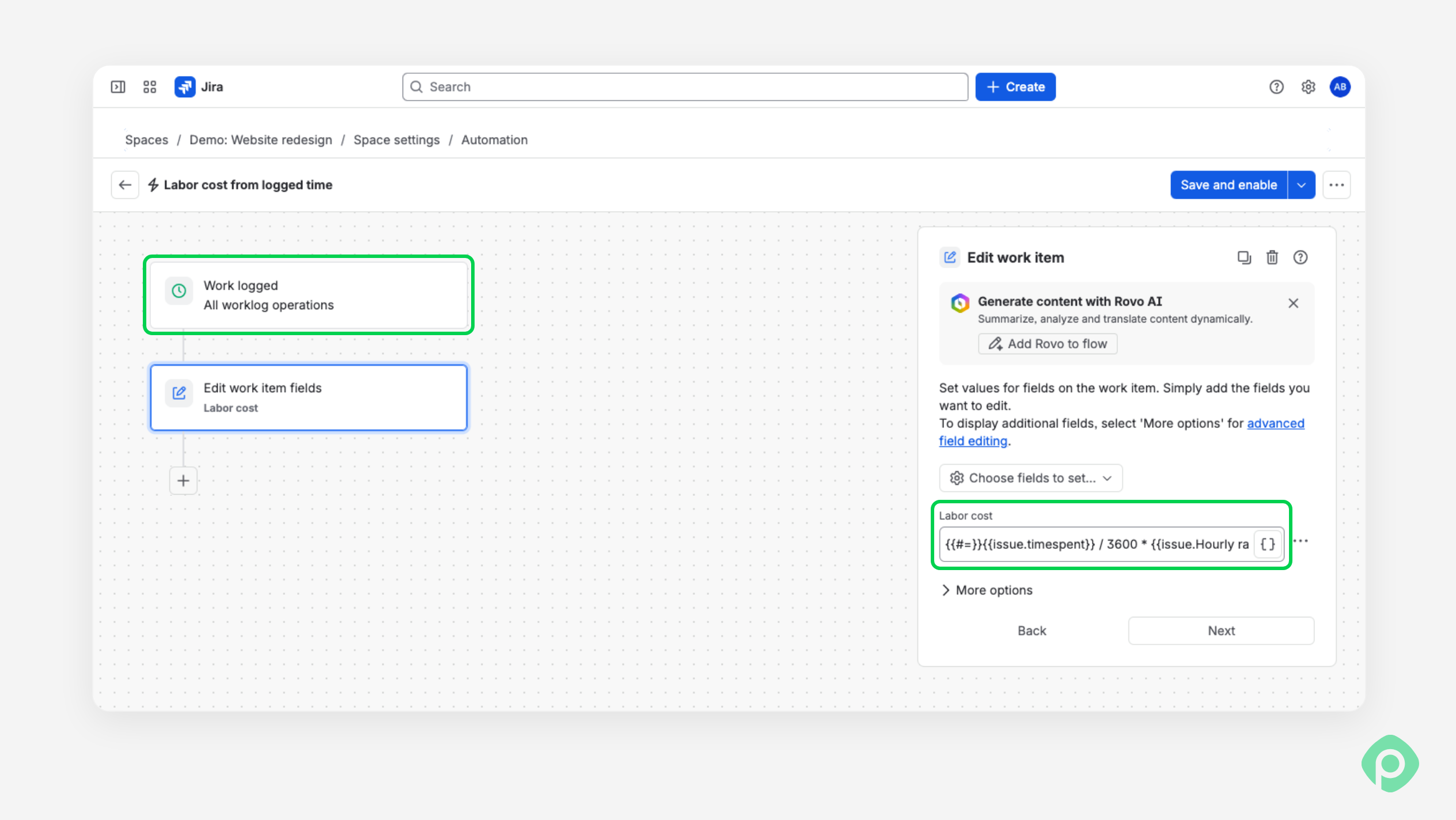
Automation can even multiply time spent by a number stored in a ****custom field, as long as someone sets up the rule and keeps the rate field up to date.
What's missing for budget tracking?
The money layer isn't there. Jira has no hourly rates, so an hour from a senior engineer and an hour from a junior look exactly the same in the data. It can't tell billable work from non-billable. There's no report that shows cost or revenue per project, and no budget that adds up as people log time.
We keep seeing the same three questions on the Atlassian Community, asked by different people a few years apart: where do I put the hourly rate, how do I count a subcontractor we pay a flat fee for one task, and how do I get actual cost when everyone on the team has a different rate? The usual solution is custom fields and automation for the simple cases and a Marketplace app for everything else. Translating hours into money is the gap that the rest of this guide deals with.
How to calculate the cost of a Jira project from logged hours
The formula fits on a sticky note:
Project cost = (hours logged × hourly rate, per person) + project expenses
Then you compare that number with the budget, and the difference is your variance. Here's a small example from a website redesign with a budget of $20,000:
| Person | Hours logged | Cost rate | Labor costs |
|---|---|---|---|
| Senior developer | 80 h | $90/h | $7,200 |
| Designer | 60 h | $70/h | $4,200 |
| QA engineer | 40 h | $50/h | $2,000 |
| Fonts and stock photos | $600 | ||
| Total so far | 180 h | $14,000 |
With $14,000 spent, $6,000 of the budget is left. That sounds comfortable until you check the remaining estimates and see 90 more hours of development, which is another $8,100 at the senior rate, so the project is heading for roughly $22,100, about 10% over, and you know it with a third of the work still ahead. That early warning is the whole point of tracking costs during the project.
Budget tracking in Jira by hand: a simple cost tracker
If you run one team and a few projects, you can build a working cost tracker with a spreadsheet and a couple of fields and start today without buying anything. For a starting point, try our Excel template.
The whole process takes six steps.
- Set the rates. Write down an hourly rate for each person or role in one place, a short-rate documentation tab is enough, and note the date it starts from, since rates go up and January's hours shouldn't be priced at June's rate.
- Make logging a habit. The numbers are only as good as the time data, so ask the team to log time on the work item daily, or at least before the end of each week.
- Create the budget. For each Jira project, take the estimated hours, multiply them by the rates, add the expenses you already know about, like the stock photos or a freelancer's quote, and keep the total in a custom field or at the top of the sheet.
- Pull the actuals. Once a week, pull the worklogs into the sheet, filter them by project and dates, and multiply each person's hours by their rate.
- Compare progress with the plan. Look at the budget vs. actual for the whole project, and for each epic, if you need the detail, together with the remaining estimates, which over a few projects also pushes the team toward more accurate estimations.
- Review on a schedule. Put it in the calendar, say Thursday before the client call, every week or two, which leaves enough time to cut scope or have an honest conversation with the client if the numbers drift.
Where manual budget management breaks
A spreadsheet cost tracker like this is a good teacher, and for a single project, we'd happily keep using it. It's when the third and fourth projects arrive that things start to wobble.
A client rings on Tuesday to ask where the budget stands, and the honest answer is “as of last Friday”, since a fresher number means you generate another export and fix the formulas again, which is about as far from real time insights as it gets. With the budget in one file, hours in Jira, and rates in a tab that only the ops manager can edit, nobody has a unified view, and stakeholders like the finance lead end up messaging you and waiting.
The bigger issue is timing. A sheet, however tidy, adds things up after they've happened, and what you really want on a Wednesday is to know that the checkout page has already eaten 30 of its 20 hours. That's what people mean by actionable insights, and they live in the gap between the plan and the logged hours, which is exactly the part a monthly spreadsheet smooths over.
Billable vs. non-billable hours
If your team works for clients, there's one more thing a spreadsheet like this tends to miss. Billable hours end up on an invoice, and non-billable hours are everything else: the internal sync, the onboarding call for a new developer, and the bug you fixed for free because it was your bug. We've seen projects that looked fine on paper and still lost money, simply because a chunk of the team's week went into work nobody billed, and nobody spotted it until the quarter closed.
That's why the billing status belongs on the time entry itself, decided when the time is logged, and not reconstructed in a spreadsheet at the end of the month. We've written separately about billable vs non-billable hours in Jira and about the billable utilization rate, if you want to go deeper.
What to look for in a Jira cost-tracking app
When a team asks us which cost-tracking app to pick, we usually suggest checking how it would handle an ordinary week of theirs. Start with these five questions:
- Does it use existing Jira worklogs? A second system for logging time can leave you with two totals that never agree.
- Can rates change without rewriting past costs? Anna should be able to have one rate until March and another afterward, without her January hours being repriced.
- Can people mark time as billable when they log it? Look for billable status on each time entry, so the decision happens while the work is still fresh.
- Can you compare estimates with logged hours? You should be able to see both side by side for the same work item and spot overruns.
- Can finance use the exports without Jira access? Your finance lead should be able to open and work with the exported data without a Jira login.
An app that clears these five checks has a good chance of replacing your spreadsheet. One that doesn’t may become another spreadsheet to maintain.
Cost tracking and financial management in Jira Cloud with Planyway
Planyway for Jira brings project planning, resource management, time tracking, and reporting together inside Jira. For cost tracking, it builds on the hours your team already logs, so you don’t have to move worklogs into a separate system to see what the work costs. Basically, Planyway builds the reports for you based on the time and cost data you put in.
From logged hours to project costs
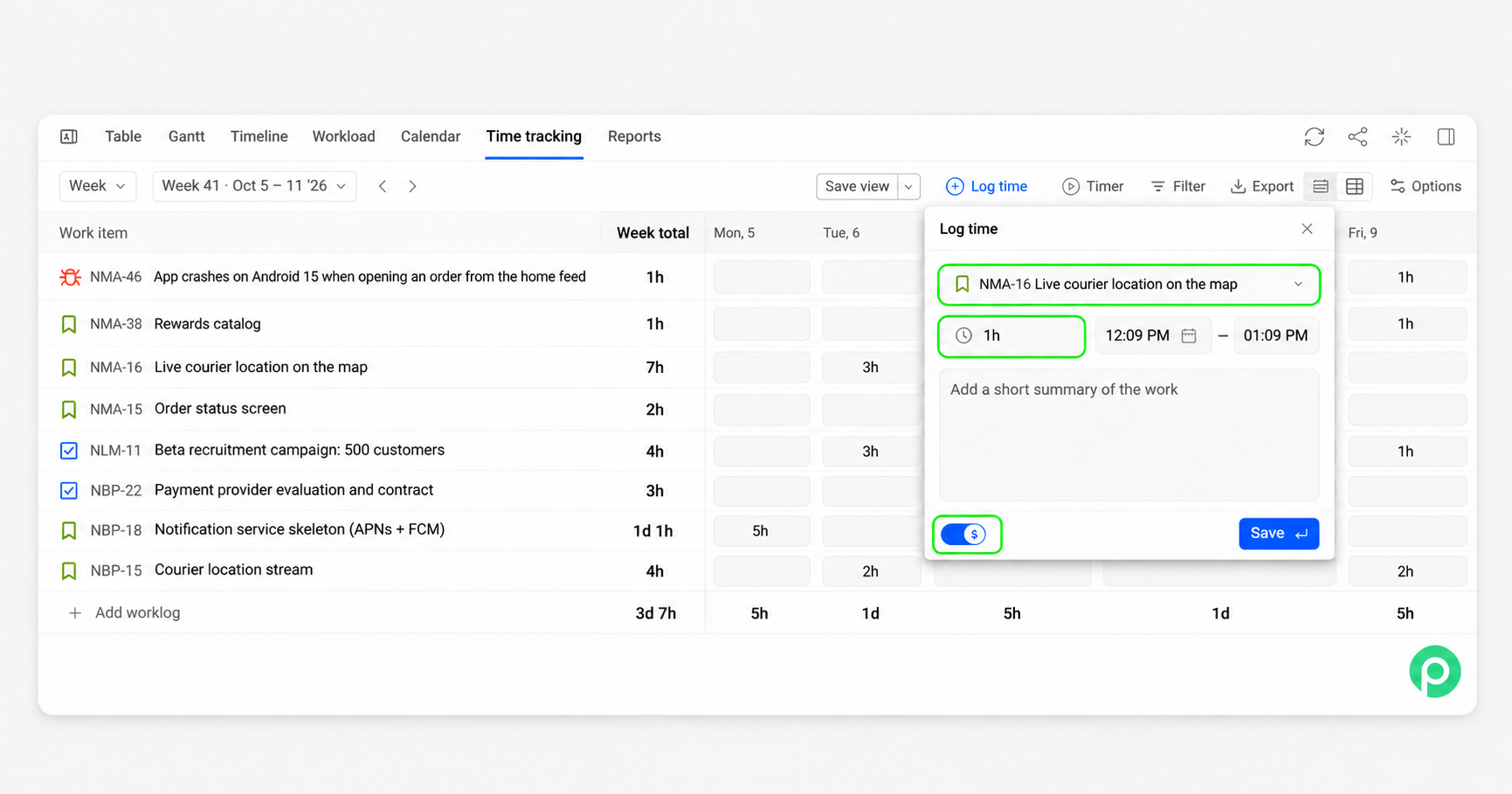
Your team can log time directly on a Jira work item, using a timer or entering hours manually. Each entry is saved as a native Jira worklog. When logging through Planyway, people can also mark time as billable or non-billable, keeping client work separate from internal activities.
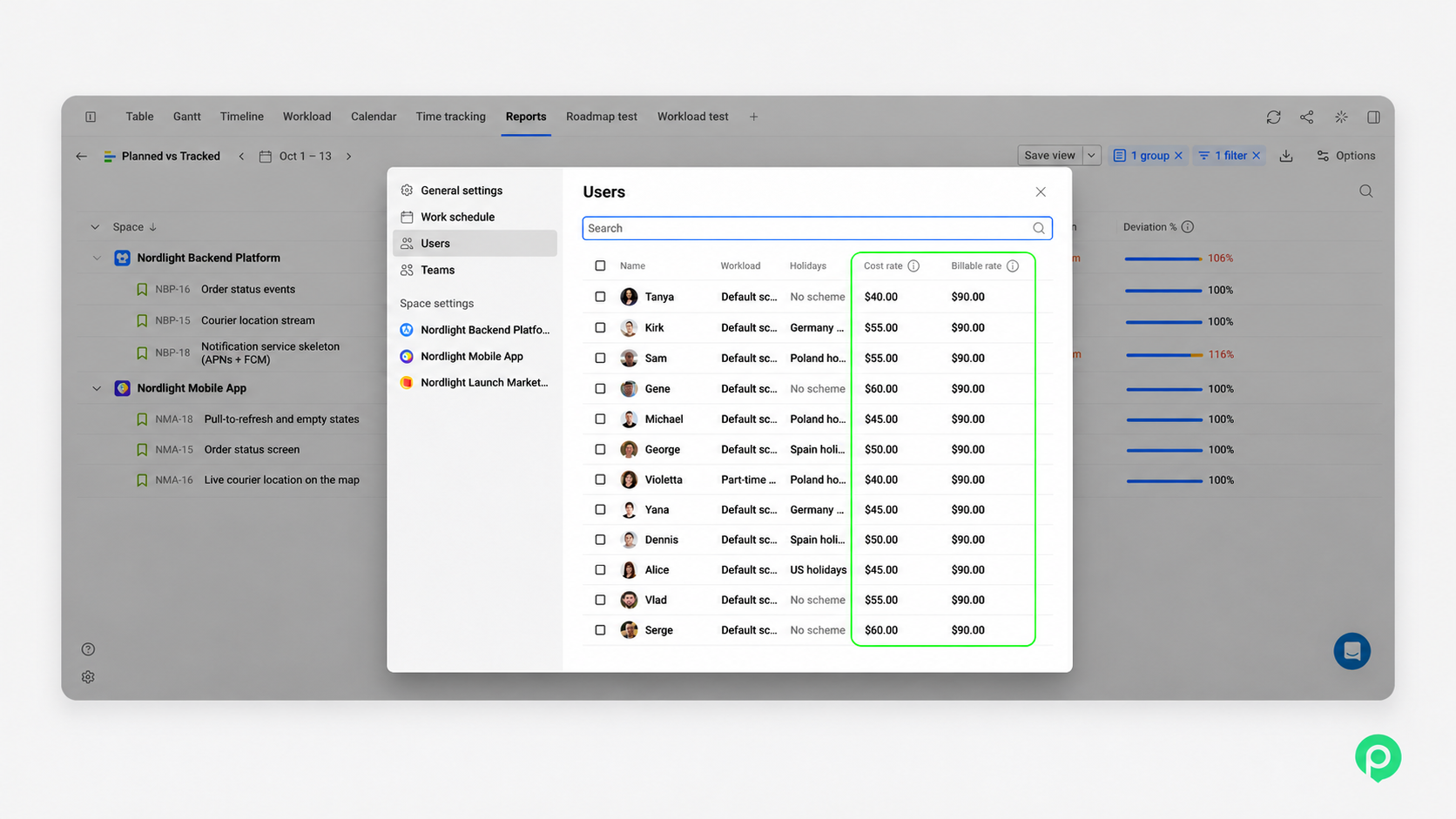
To turn those hours into money, open Users in Planyway and add each person’s cost and billing rates: what their time costs your company and what you charge the client. You can set rates for different periods, so a rate increase in March doesn’t reprice January’s work.
See costs, revenue, and overruns
Once rates are in place, the Costs & Revenue report brings planned and actual costs and revenue together, alongside profit and margin. You can review individual work items or group several projects by Jira space, then export the financial report to Excel for your finance lead.
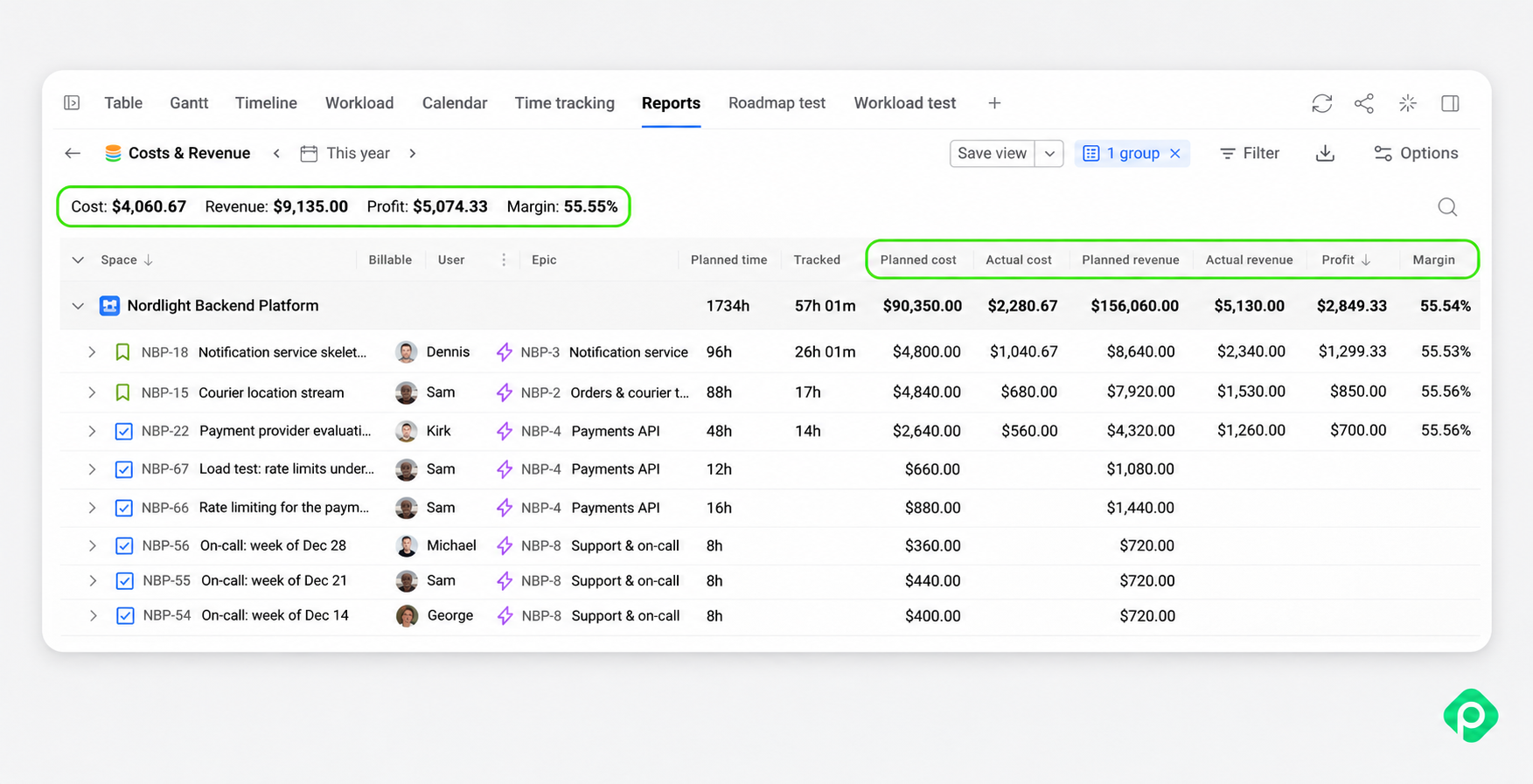
For a closer look at overruns, open Planned vs. Tracked. It compares estimates with logged hours and can include remaining effort. If the checkout page has taken 18 hours and still needs another eight against a 20-hour estimate, you can manage project scope with the client before the extra work becomes a bigger cost.
Because planning lives in the same app, you can also check who has room to take on work. The Workload view supports the allocation of resources across the project timeline, helping you adjust the plan when the hours start to drift.
Start on the free plan
Planyway has a free plan for teams of up to 10 users, plus a free trial for bigger teams, so you can set rates for one team, log a week of time, and see your first Costs & Revenue report before rolling it out to the entire organization.
Who needs which financial data for decision-making?
One data set has several readers, and in a typical client team, each of them wants a different slice of it. The PM opens it on Thursday to monitor project costs before the client call. The delivery or operations lead wants to know whether billable work is getting squeezed by internal tasks across all projects. Finance wants actual costs and revenue per project in a file that fits their monthly finances review, and the client or an executive mostly wants one line in the status update: on budget or not, and why.
When all of them can get their answer from the same report, without a meeting to put it together, budget management turns into better financial control for the entire organization.
Common Jira budget and cost tracking mistakes
- No rates, just hours. Four hundred hours from a senior engineer and four hundred from a junior are two very different invoices, so hours on their own say nothing about cost.
- Mixed estimates. Half the backlog in hours and half in story points adds up to a number nobody can price, so use hours for anything you want to put a cost on.
- Forgetting indirect costs. Nobody expects you to split the office rent across tickets, but write down what you left out; otherwise, a project with a 30% margin can still lose money for the company once overhead is counted.
- Reviewing only at the end. We've sat through post-mortems where the overrun was obvious in week three, and nobody looked until week twelve, so put a 15-minute cost check on the calendar every Thursday.
- Treating logged time as exact. People who fill in their week on Friday afternoon from memory nearly always come up short, so a daily logging habit fixes your numbers faster than any report.
- Tracking costs without a plan. Being $14,000 in is great news on a $40,000 budget and bad news on a $15,000 one, so agree on the budget before anyone logs the first hour.
A better answer to “Are we on budget?”
You don’t need a perfect forecast to catch an overrun. You need reliable hours, the right rates, and a regular look at how the work compares with the plan. That turns the next client call into a conversation about what to do next, with fewer surprises to explain.
Planyway brings those pieces together inside Jira, connecting the work you plan with the time your team logs and what it costs. So when someone asks where the budget stands, you can just open a ready-made report — and get on with the conversation.


FAQ
Jira doesn't have built-in cost tracking. It will tell you that the team spent 180 hours on the redesign and how much of that was estimated, but there's no place for an hourly rate and no report with money in it, so teams either piece something together from custom fields, automation and exports, or install an app that turns worklogs into costs.
To track project costs in Jira, you take the hours each person logged, multiply them by that person's rate, add things like the contractor's invoice or the stock photo license, and hold the total up against the budget. For the first project or two it’s ok to stick with a sheet, and once updating it starts eating your Friday afternoons, an app like Planyway that keeps rates next to the worklogs is worth a look.
The difference between direct and indirect costs comes down to whether you can point at the one project they belong to. Your designer's hours on the redesign and the freelancer you brought in for the illustrations are direct, the office rent and the Slack bill are indirect, and most Jira cost tracking sticks to the direct part because that's what the worklogs cover.
The difference between billable and non-billable hours is whether a client ends up paying for them. Anna's afternoon on the client's checkout goes on the invoice, her Monday planning meeting doesn't, and once you see both next to each other, it's often a surprise how much of a full week never gets billed.
You should review project costs every week or two while a project is running and monthly at the very least on quieter ones. We like a ten-minute look on Thursday before the client call, which is usually enough to catch an epic that's drifting while there's still room to trim scope.
You can't set hourly rates in Jira natively, since there's no rate field anywhere in the product. Some teams add a custom number field for one project-wide rate and let automation multiply it by time spent, which holds up until people have different rates, and for rates per person that change over the year, an app like Planyway keeps a cost rate and a billable rate with start dates for everyone.