Jira project types: how to choose the right one, with examples
Violetta · Customer success · Nov 6, 2026
10 min read
Who cares what type of project to choose in Jira? Short answer: you, when you realize you’ve picked the wrong one.
Long answer: project type is where the Jira work starts, and if you set off on the wrong foot, you will quickly join the “oh, Jira isn’t for us — too clunky!” team. When in fact, when you create a new Jira project and receive a wall of templates and questions, you need to stop and think instead of just clicking whatever looks closest and moving on.
In this article, let’s walk you through every project type with examples of who uses it and why. Then we'll look at the second choice Jira forces you to make: team-managed or company-managed. Stay until a cheat sheet in the end, and project types in Jira will be a 5-minute task for you.
What are Jira project types?
Jira project types are built-in templates and frameworks that form the project’s initial structure, default issue types, boards, workflows, and permissions.
There are four types: software, business, service, and product discovery. They can look similar at first glance, but each one is built for a different kind of work. Here is a quick look at all four before we go into details on each one.
Project type
Built for
Typical teams
What you get
Software
Building and shipping a product
Developers, QA, product teams
Scrum or Kanban boards, backlog, sprints, releases, links to code and deployments
You can’t change your project type in Jira from one to the other if you realize you picked wrong later. The only option would be to create a new project.
Important note: Atlassian has been renaming projects to “spaces” and issues to “work items”, so older tutorials call team-managed projects “next-gen” and company-managed ones "classic". These are still the same things. In this article, we’ll use "project” for clarity.
Software projects (Scrum and Kanban)
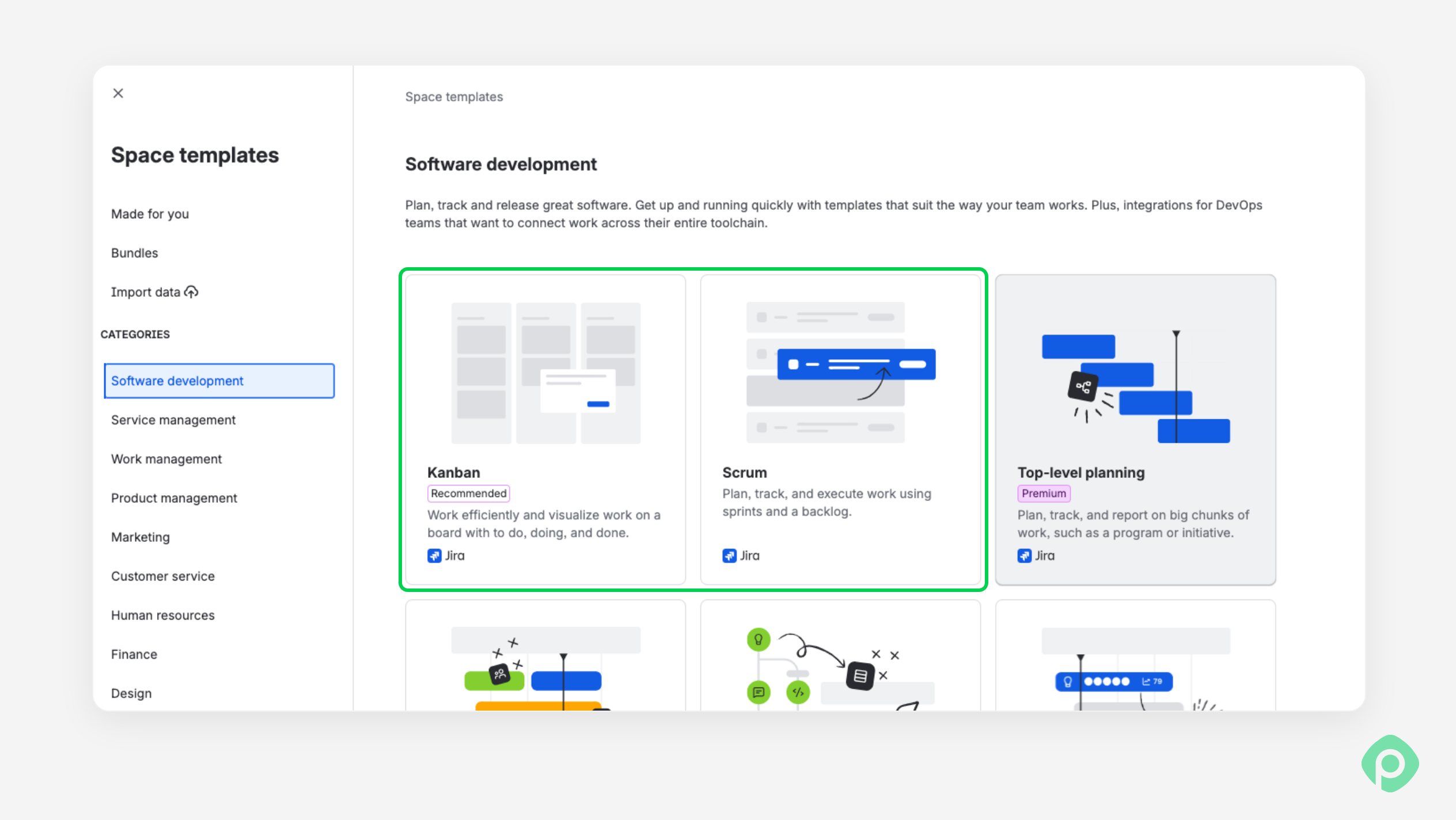
Software projects are for teams that build a product — an app, a website, a SaaS, etc. Inside this type, there are two main templates, and the difference is about how your team works, not how big it is.
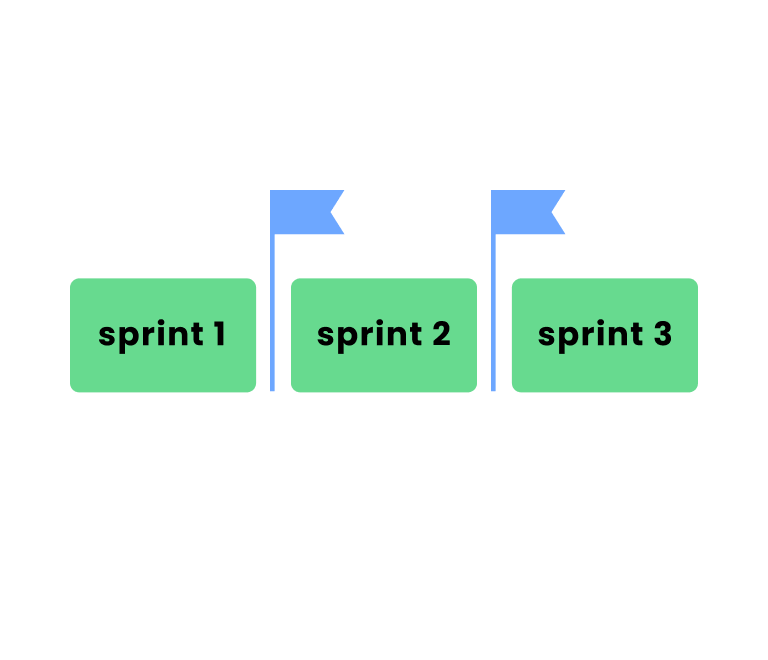
Scrum is for teams that work in sprints. You plan two weeks, pull work from the backlog into the sprint, ship it, and then look back at how it went. Every work item can carry story points, and you get sprint and release reports out of the box.
A mobile app team could work like that: on Monday, they pull 12 items into the sprint. The board can have To Do, In Progress, In Review, and Done sections. After two weeks, when the release is out, they can have a retro to analyze performance, mistakes, or left out tasks if there were any.
Kanban is for teams where work just keeps showing up. There are no sprints, no start and finish line. You have one board, you cap how much can be in progress at once, and when someone has room, they grab the next item.
This is a better fit for a platform team that handles infrastructure requests and bug fixes. In this type, new stuff can land in the left column and slide across as people free up.
Both templates, however, share links to code, builds, deployment, and releases. They also have board settings such as swimlanes, card colors, and quick filters. All of these things work great if you’re a developer, and are just a lot of useless stuff if you’re not.
Business projects (for teams that don't write code)
Not everyone who tracks work in Jira needs to ship software. If your team is like that, a business project may be exactly what you need.
Business projects in Jira are a version of what users of Asana, Smartsheet, or Monday may already be familiar with. It looks similar to a software project, but it’s lighter because there’s no code or deployment tabs, and no heavy board setup.
If you're not sure what to pick, start with the blank business project and add what you need.
Here are a few examples:
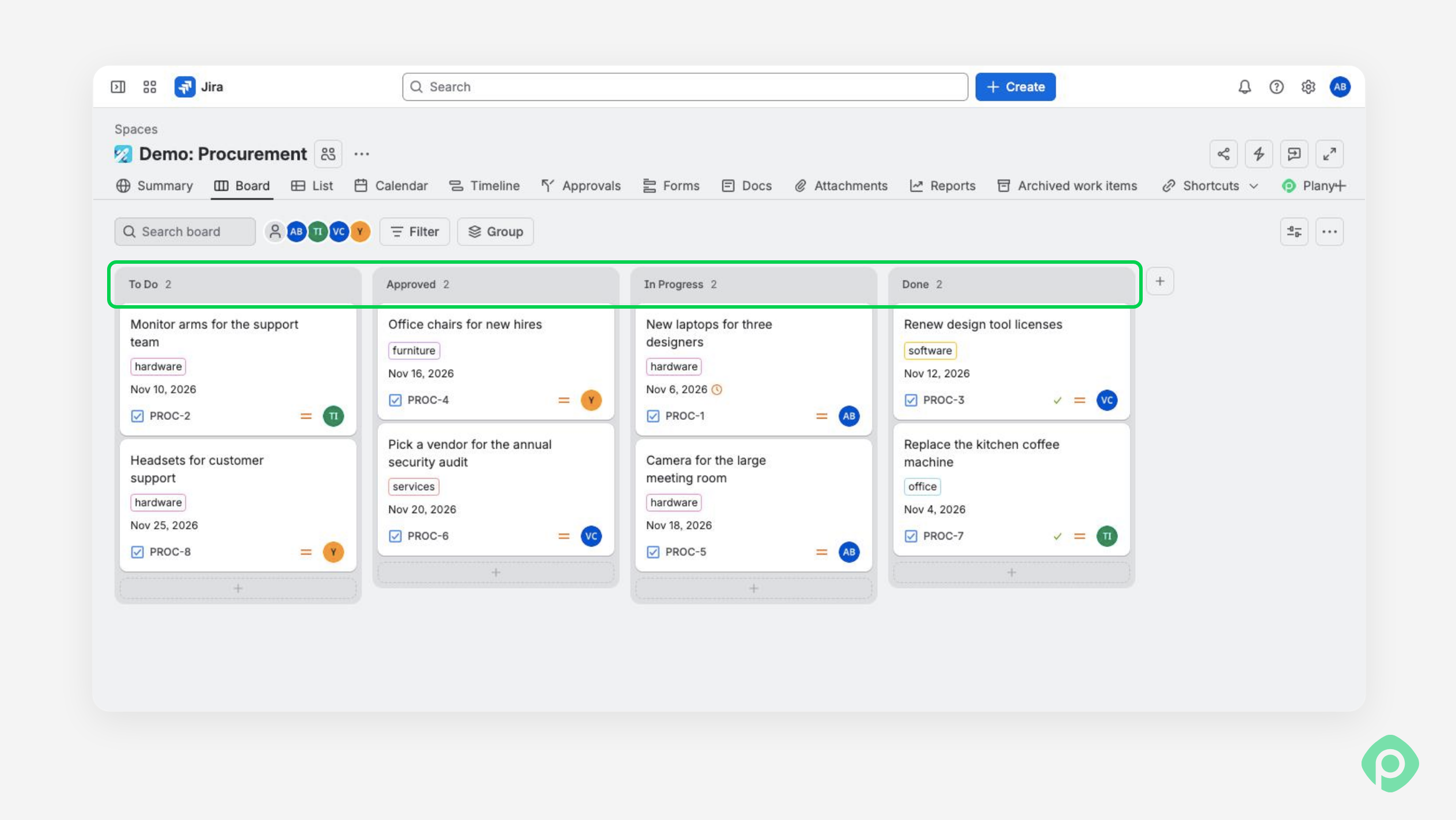
Procurement. You can track hardware from request to approval, order, and delivery. One board, a handful of statuses, a due date, and an owner on every item.
Marketing. Can be a great campaign tracker with a calendar view, so everyone sees what goes live and when, plus a timeline to line up the launch.
HR. An onboarding checklist for new hires: one task for IT, one for the manager, one for payroll, and so on.
Legal. Contract reviews moving through Draft, In review, Sent for signature, and Signed.
Leadership. A short list of company goals, each with an owner and a deadline.
Service projects (when other people send you requests)
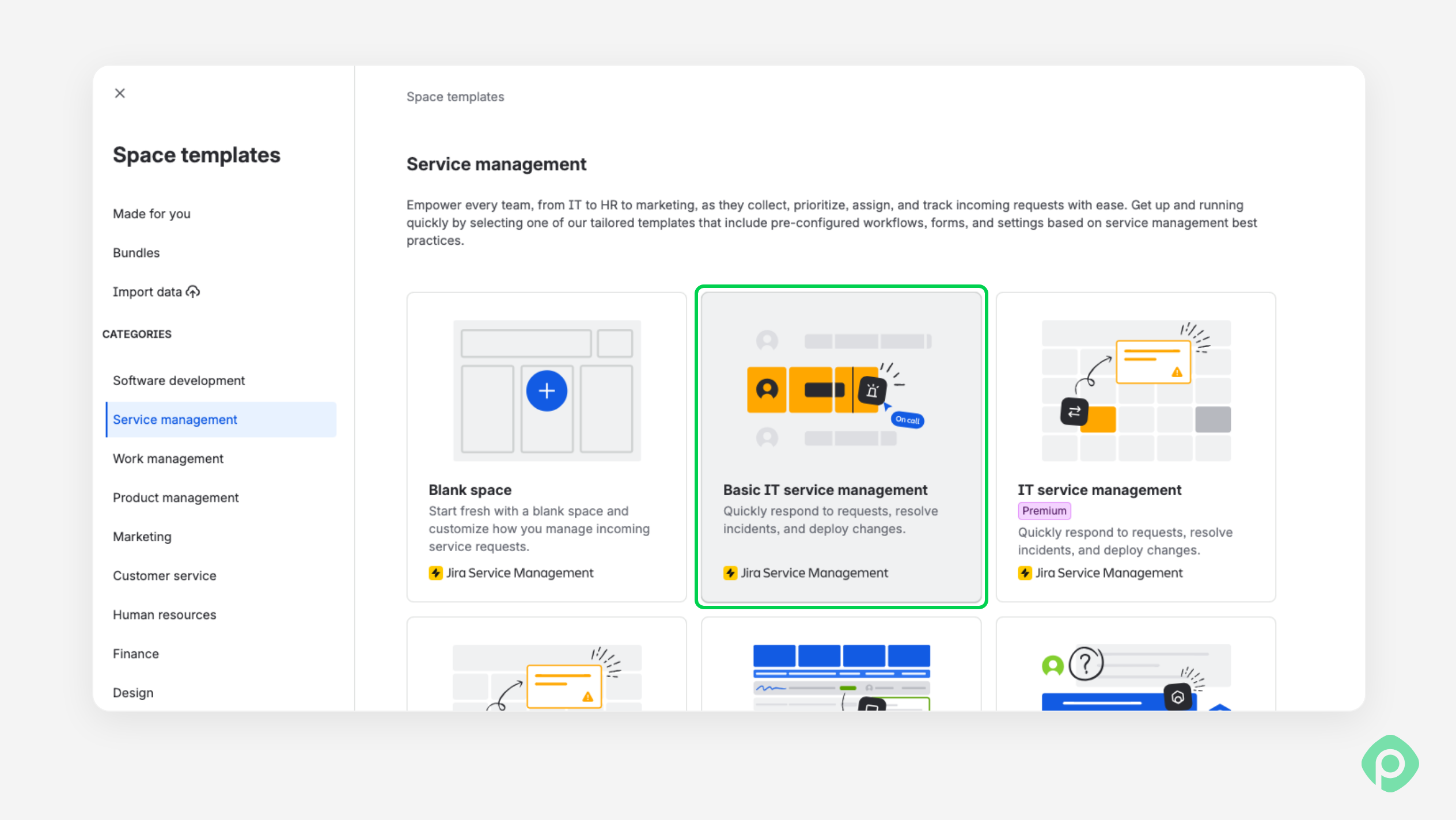
Service projects come from Jira Service Management. The biggest difference here is who creates the work.
In a software or business project, your team creates its own items. In a service project, someone outside the team sends a request through a portal, and your team works through it from a queue, usually all under an SLA (Service Level Agreement).
There are templates for IT support, customer support, HR support, and general service management. Mostly, they differ in which features are switched on, and you can see those in the project's settings under Features. Luckily, if you pick something wrong here, it’s easy to fix.
Some examples:
IT help desk. Requests to change a password or replace a laptop land in a queue, an agent picks it up, and the SLA timer shows how long is left to respond.
Customer support. Customers email a support address, and every email becomes a request that the team can assign, answer, and close.
HR requests. Here, employees can ask for an employment letter or a change to their payroll details through one form.
Facilities. A good fit for office managers to handle stuff like booking meeting rooms or fixing broken kitchen items. People fill in a form, and the facilities team works the queue.
If your work starts with someone else asking, it's a service project. But if it’s up to your team to decide what to work on, a service project is most likely the wrong pick.
Whichever Jira project type you choose, Planyway for Jira can help you see the bigger picture. Bring work from multiple projects into one roadmap, visualize tasks on a timeline or calendar, track dependencies, and check team workload before assigning more work. Everything stays synced with Jira, so you can plan across teams without juggling separate tools.
Product discovery projects: deciding what to build
Let’s finish with a project type that stands out a bit. Since software, business, and service projects are all about getting something done, a discovery project is about figuring out which work even needs to be done.
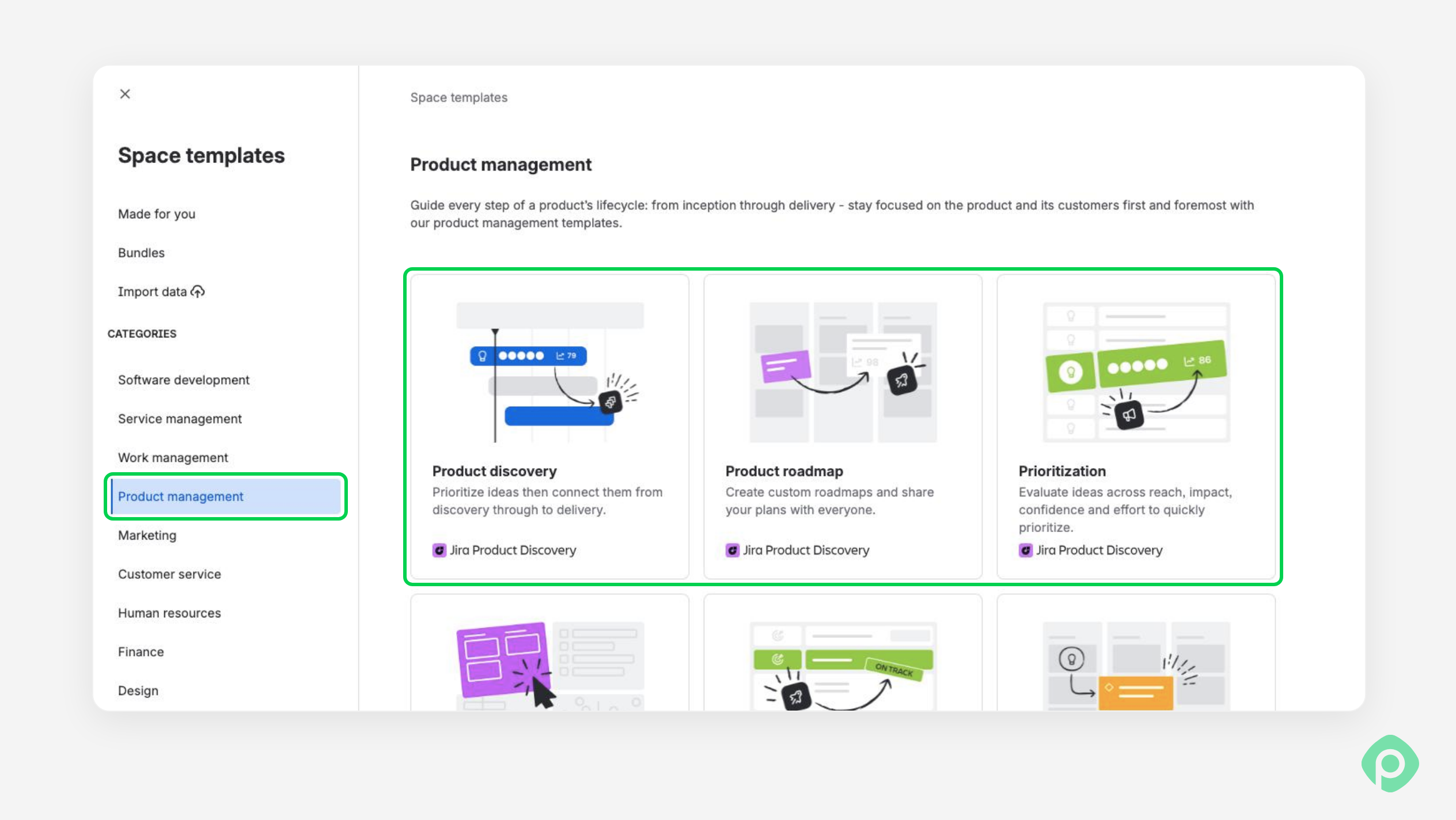
Atlassian calls it the place “where uncertain work happens”. In this project type, you can use built-in frameworks and consistent scoring to evaluate ideas, weigh tradeoffs, and turn evidence into clear priorities to power your roadmap.
But to create a JPD, you’ll still need to decide whether you need Product management or Software development under Project templates.
Here’s how you can use Jira’s product discovery projects in your actual working routine.
Feature requests. A product manager collects requests from sales calls, support tickets, and user interviews, and attaches each one to the idea it supports.
Prioritization. The team scores ideas on impact and effort, then looks at the matrix to see which ones are quick wins and which are expensive bets.
Roadmap for stakeholders. Once the team decides, the chosen ideas go on a timeline view that sales and leadership can read.
Backlog cleanup. A tech lead goes through a messy backlog of ideas, scores them, and keeps only what the team will actually build.
Keep in mind that discovery projects are team-managed only, so whoever owns the project runs the setup without waiting for a Jira admin.
The second choice: team-managed or company-managed
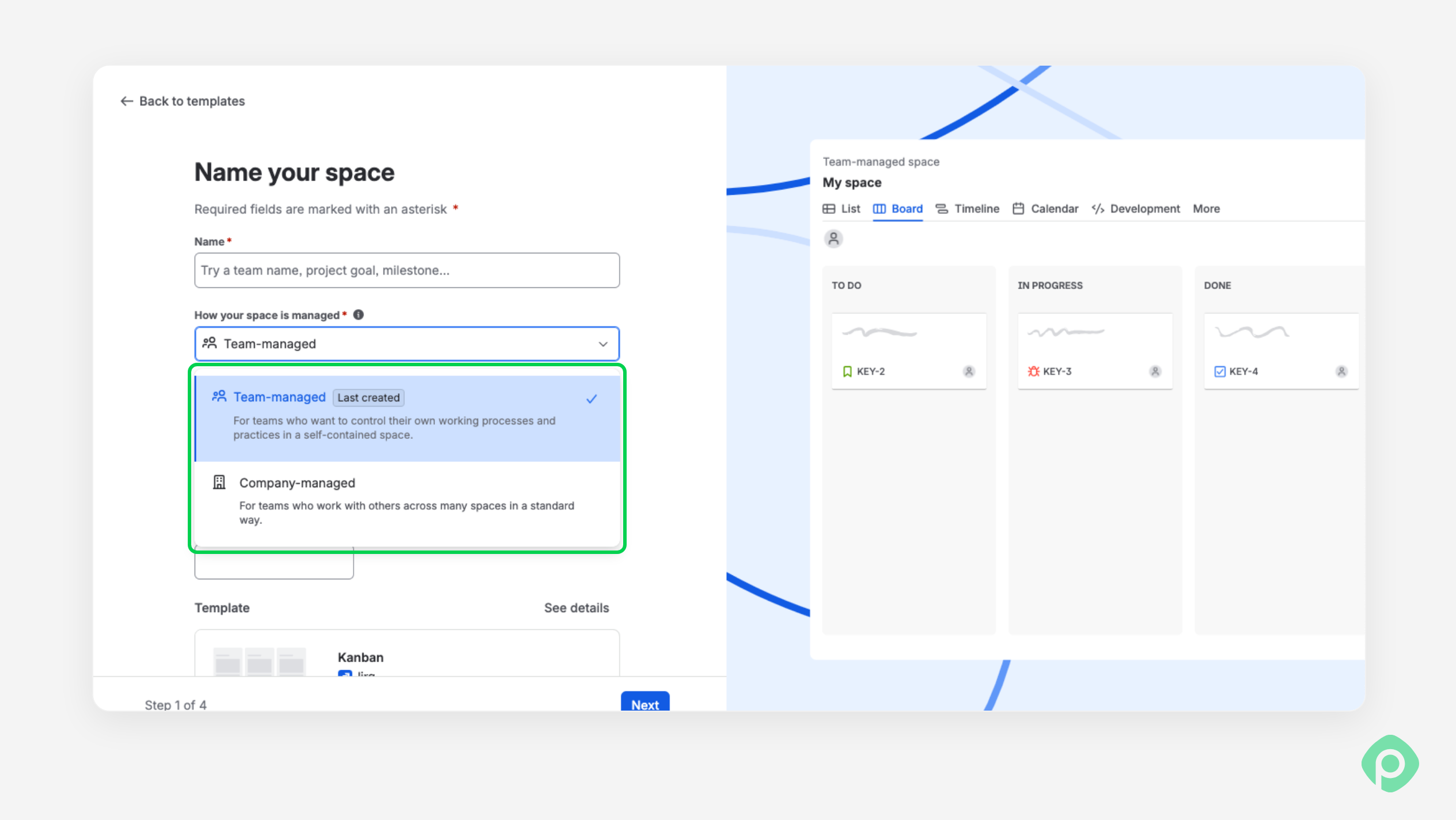
After you figure out the type, Jira asks how the project is managed. Here’s what it means when you translate it from Jira to human.
A team-managed project keeps all its settings inside the project. Work types, fields, workflow, rules: they all belong to that one project, and the project admin can change them without calling Jira project administrators.
A company-managed project uses configuration that lives outside any single project and is run by a Jira administrator. Workflows, fields, and screens can be shared by as many projects as you like. If you rename a status in a shared workflow, every project that uses it changes too.
Let’s visualize the key differences a bit more.
Team-managed
Company-managed
Who sets it up
The project's own admin
A Jira administrator
Where settings live
Inside the project
Shared across projects
Speed of change
Fast
Slower — goes through an admin
Standardization
Each project does its own thing
One workflow or field setup reused everywhere
Advanced options
Fewer: simpler permissions, no multiple boards, no components
More: detailed permissions, components, custom schemes, work from other projects on one board
Old Atlassian name
Next-gen
Classic
So when does each one fit?
Team-managed: when it’s a small team that wants to start today, a personal task list, or a throwaway project to create workflows and test them. It also works when the team needs new custom fields every other week and would otherwise wait on an admin.
Company-managed: five development teams that must use the same workflow, a department that reports across projects.
However, even Jira consultants disagree on this one. Some tell clients to avoid team-managed projects completely because of the cleanup when a team outgrows them. Others happily recommend them for small, independent teams because they're so much easier to run.
There’s no right choice for every team, but generally, the more your projects need to line up with each other, the more you’d want company-managed.
To find out which one you already have:
Open the project settings;
A team-managed project shows things like Access, Fields, and Work types;
A company-managed one shows People, Permissions, Workflows, Versions, and Components.
How to pick the right project type in Jira
Three answers can help. Here are the questions:
Who creates the work? If people outside your team send requests, you want a service project. If your team decides what to work on, keep going.
Does your team build software? If yes, it's a software project: Scrum if you work in sprints, Kanban if work flows in all the time. If no, it's a business project. And if the real question is "what should we build?", that's a discovery project.
Does your setup have to match other projects? If multiple teams must share a workflow or fields, go company-managed. If the team is small and independent, team-managed is the faster start.
Here’s the same logic applied team by team — browse the cheat sheet and find whatever feels closest to your team.
Team
Project type
Managed
Developers working in sprints
Software, Scrum
Company-managed if other teams must follow the same workflow, otherwise either
Platform or ops team with a constant flow of tasks
Software, Kanban
Either
Procurement or finance
Business
Team-managed is usually enough
Marketing
Business
Team-managed, or company-managed if reporting across campaigns matters
HR running onboarding tasks
Business
Team-managed
HR answering employee requests
Service
Company-managed
IT help desk, customer support
Service
Company-managed
Legal reviewing contracts
Business
Team-managed
Product managers ranking ideas
Product discovery
Team-managed (the only option)
What happens if you pick the wrong Jira project type
At first, nothing dramatic will happen, but later on, your work will start to feel wrong. You won’t be able to access a setting you need, or your boards will be filled with stuff your team doesn’t use.
When it comes to changing the project type in Jira, there is a catch.
Software to business, or the other way round. There's no switch. You create a new project of the right type and move the work items into it.
Team-managed to company-managed. Atlassian says there's no native feature for converting directly. Your Jira admin creates the company-managed project, and you move the work items across.
Moving work items. Issue keys change, because they carry the project key (PROC-12 becomes OPS-45). Fields that exist in one project may not exist in the other. And saved filters, dashboards, and automations that point at the old project need a second look.
How bad it gets depends on how much you have. A project that's two weeks old with 30 items takes an afternoon to recreate. But a project with a year of history and reports built on top of it is a small migration project of its own.
Planning across project types
Once you have a few projects, a different problem shows up. Each one has its own board, and nobody sees the whole picture. The marketing launch sits in a business project, the build sits in a software project, but the person who owns both has to jump around.
Planyway for Jira is made for exactly that gap. You can put several Jira spaces, boards, or filters on one timeline, Gantt chart, or calendar, so the launch and the work behind it show up in the same place. There's a free plan for teams of up to 10 users, and a free trial if you need more.
Different Jira projects. One clear view.Whatever Jira project type you choose, Planyway helps you plan tasks, manage resources, and track progress in one place.
Jira has four main project types: Software, Business, Service, and Product Discovery. Software projects help development teams plan and deliver products using Scrum or Kanban. Business projects help non-technical teams manage tasks and processes. Service projects handle requests from employees or customers, while Product Discovery projects help product managers collect, evaluate, and prioritize ideas.
Jira Software projects are designed for teams that build and maintain software. They include development-focused features such as backlogs, sprints, releases, and integrations with code and deployments. Jira Business projects are intended for non-development work, such as marketing campaigns, HR processes, procurement, and contract reviews.
Choose Scrum if your team works in fixed-length sprints, plans work in advance, and reviews results at the end of each iteration. Choose Kanban if work arrives continuously and team members pick up new tasks as they become available.
The main difference is how project settings are configured and maintained. In a team-managed project, settings such as workflows, fields, and work types belong to an individual project, and its project admin can manage them independently. In a company-managed project, a Jira administrator controls shared configurations that can be reused across multiple projects to maintain consistency.
No. Jira doesn't provide a direct way to convert one project type into another, such as changing a Business project into a Software project. You need to create a new project with the correct type and move your work items into it.
A Jira Service Management project is used to collect, organize, and resolve requests submitted by people outside the team handling them. Common use cases include IT help desks, customer support, HR requests, and facilities management. It provides features such as request portals, queues, and service-level agreements (SLAs) to help teams manage incoming requests and response times.