Jira Resource Management: Ultimate Guide to Streamline Resource Planning

Jira is super helpful at tracking tasks. But, unfortunately, work doesn’t get done by tickets — it gets done by people. The plan might look perfect, but then three urgent tasks land on the same engineer, two deadlines collide, and nobody notices the overload until it’s already too late. And while default Jira doesn’t have anything to offer to manage resource allocation properly, project managers keep mastering workarounds, whether that's third-party plugins, good old Excel sheets, or costly upgrades to Jira's premium tiers.
In this guide, we’ll look at how teams handle resource management in Jira, what you can do with its native features, and what other options come into play when you need more visibility into workload and capacity.
TL;DR
- Resource planning helps you allocate resources efficiently to deliver on time and balance workloads, avoiding burnout and underutilization.
- Jira’s native features are limited in resource management, especially when it comes to individual capacity, vacation tracking, and cross-project planning.
- There are 3 ways to handle resource management in Jira: workarounds (JQL, Excel, custom fields), Jira Plans (expensive and mostly focused on project timelines rather than on workload), and plugins (the most practical and flexible resource planning tools).
What is resource planning?
In simple words, resource management is how you allocate resources to achieve your project goals. It helps you understand who is doing what, when, and how many resources are available to avoid overloads and delays. It’s planning based on limitations, such as individual capacity, task estimation, participation in other projects, skills and roles, vacations, and time off.
Some people tend to mix up the terms when it comes to resource management, resource allocation, and capacity management. Resource management is a more high-level concept that spans planning, tracking, and optimizing resources to achieve project goals. Capacity management is all about making sure the team has enough human resources to meet demand without overload, while resource allocation focuses solely on assigning resources to tasks or projects.
Why do teams need resource management at all?
Teams choose to do resource management for multiple reasons. Here are the main ones:
- Deliver on time. When you plan around real capacity, skills, estimates, and time off, deadlines become far more realistic and predictable.
- Reduce burnout. When workloads are balanced, team members get a manageable number of tasks. They are not stretched too thin and can sustain their energy and motivation through projects.
- Highlight underutilization. Having team members on the bench is often a signal that something isn't working as intended, whether that's workload distribution or workload planning. Resource management helps you catch such issues in the bud and engage the team evenly.
- See who is doing what. A clear overview of who's working on what helps everyone understand ownership and track task progress in real-time.
How to manage resources in Jira? Two main ways
Jira is, first and foremost, an issue-tracking app, so resource planning is not something standard Jira has by default. Therefore, there are two ways to follow: either upgrading to Premium to get Jira Plans (which still doesn’t solve the problem entirely) or using band-aid solutions.
Manual workaround: non-premium Jira + Excel (via JQL exports)
Almost all teams go through the same path: starting with Excel + JQL. This approach typically looks like this:
- Using JQL to filter existing Jira tasks by assignee, project, due date, or status.
- Exporting data to Excel or Google Sheets.
- Adding custom fields (hours, role, team) to calculate workload.
- Tracking who is overloaded or underutilized manually.
This approach might work for small teams. However, there are evident drawbacks:
- Data quickly becomes outdated. Manual updates are a horrible thing, leading to constant misalignment between planning and reality.
- No real-time updates. Changes in project scope or workload can’t be reflected instantly, so you never know if you can rely on it without double-checking.
- No visual timeline. Without proper visual tools, it’s difficult to get an overview of project progress or Jira resource allocation at a glance.
- Hard to scale across multiple projects. Managing multiple projects or teams becomes cumbersome, as maintaining separate spreadsheets for each one can be chaotic and error-prone.
- Tons of wasted time. Updating spreadsheets is time-consuming and eats into your productivity.
- Unavoidable errors. There is a high margin of error, as changes in Jira do not sync up automatically.
Resource planning with Jira Plans (Advanced Roadmaps)
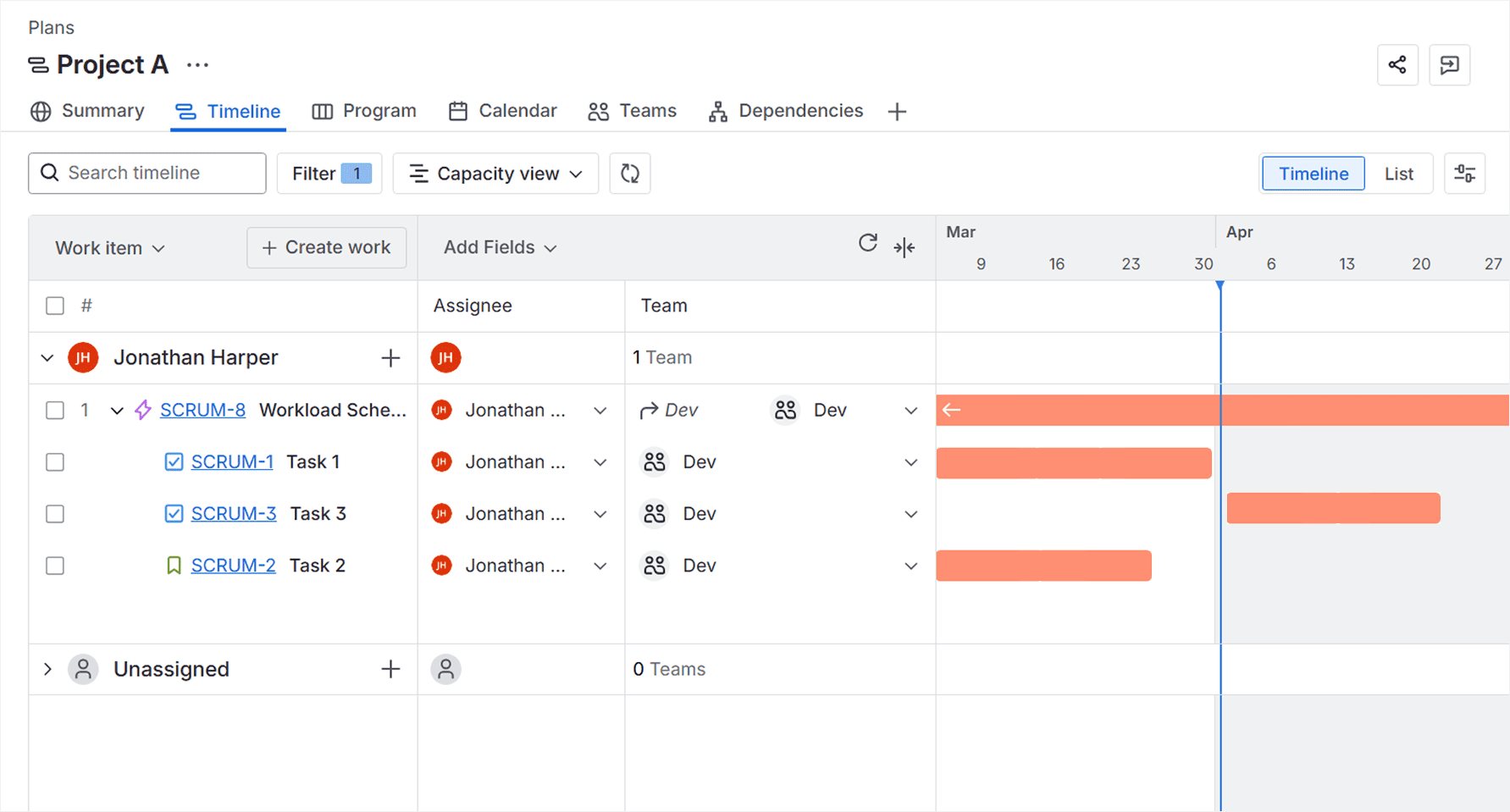
If you upgrade to Jira Premium, you get a chance to enhance native roadmaps in Jira with Jira Plans. Jira Plans not only extends Jira's project management capabilities, thanks to cross-project plans, but also adds resource planning functionality. It provides insights into capacity and workload on the team and sprint level to avoid overcommitment.
The main drawback of Jira Plans is that it doesn’t let you manage the capacity of individual team members. As a result, there is no way to account for individual availability, skills, priorities, and vacation days, which makes capacity planning inaccurate and limited.
Anyway, it’s still quite popular among larger teams, enterprises, and organizations that mostly focus on team-level resource planning. Plus, you have to be ready for a quite high price of $15 that scales as your team grows.
For teams that have already outgrown Jira’s native functionality but aren’t ready to upgrade the whole team to Premium, either because of the high price or the lack of features, this usually means looking for other ways to handle resource planning.
Where native Jira resource planning tools fall flat
Let’s hammer the point home. As such, Jira, even in its premium project management form, doesn’t qualify as a typical resource management product, especially for those accustomed to waterfall-style planning. It’s more built for the execution of work than the planning of work, and that shows in several key limitations.
No individual-level capacity tracking
Jira Plans does not let you plan capacity per user. You set the capacity for teams or sprints (for Scrum projects). So, if your team members have different capacities, skills, or availability, Jira Plans won’t reflect reality. Plus, you will have to calculate the total team or sprint capacity manually, excluding possible time off.
No visual timeline for tracking
Jira Plans puts work items on a sharp display, which is great for task tracking. That said, it’s not as helpful when it comes to managing a team or getting a clear picture of who’s doing what and when.
Dependencies are hard to track
Dependencies are there, for sure. The problem stems from the previous point: it’s easy to visualize dependencies on the issue level. However, it's not possible to set them up when you want to track which tasks are dependent on specific team members.
Cross-project resource management is limited
Jira Plans doesn’t have a global resource pool that allows you to manage and allocate resources across different projects simultaneously. Each project has its own set of resources, which makes it difficult to track overall capacity and manage workloads across projects.
Manual сalculations for сapacity and utilization
As mentioned above, there is no way to track individual capacity. Therefore, all your attempts to reflect the real picture will inevitably end up with manual calculation in Excel sheets.
An alternative way of monitoring your team’s workload in Jira
So, if Jira doesn’t support resource planning out of the box, and even Jira Plans doesn't provide full resource management functionality, what’s left? Plugins. Teams often resort to these to supplement Jira’s native capabilities and bridge the gaps, without exhausting workarounds.
As the team behind Planyway, we’ll walk you through how plugins can actually make Jira resource management work, using Planyway as an example.
While Jira Plans is built around team-level capacity, Planyway for Jira focuses on individuals. This is a key difference.
Planyway visualizes Jira issues across multiple spaces and teams on a single timeline view. You can get started with a simple view of who is doing what, which is good enough for tracking. And when it comes to Jira resource management, you can turn on the Capacity mode.
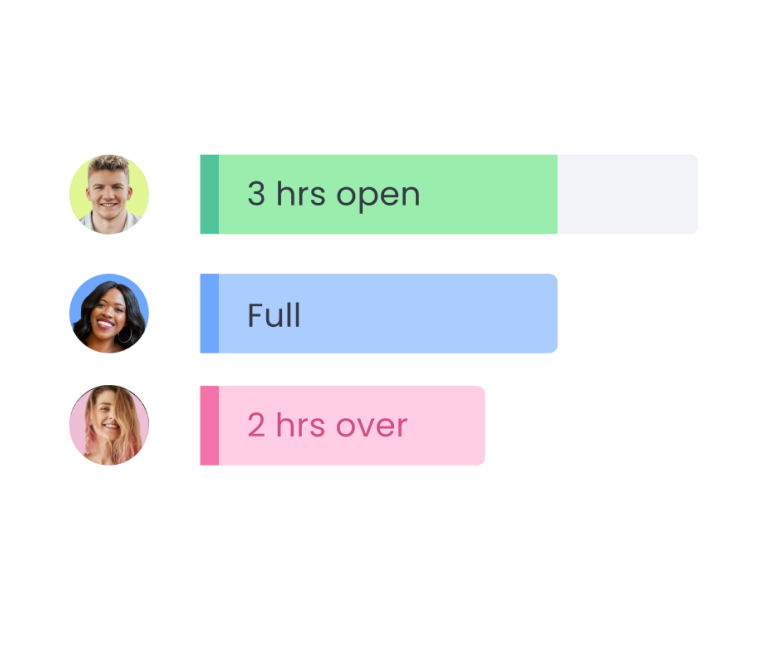
Once the capacity mode is on, you will see workload indicators above visualized work items. They are calculated based on the issue’s estimation, the team member’s capacity, and the issue’s planned hours (start and end dates). It’s sort of a heat map that tells you if someone is overloaded, underloaded, or beautifully balanced.
When developers, designers, and QA all share responsibility for one item, you can even split work items into parts to track them individually. Parts can get their own estimates and participate in the total workload calculation.
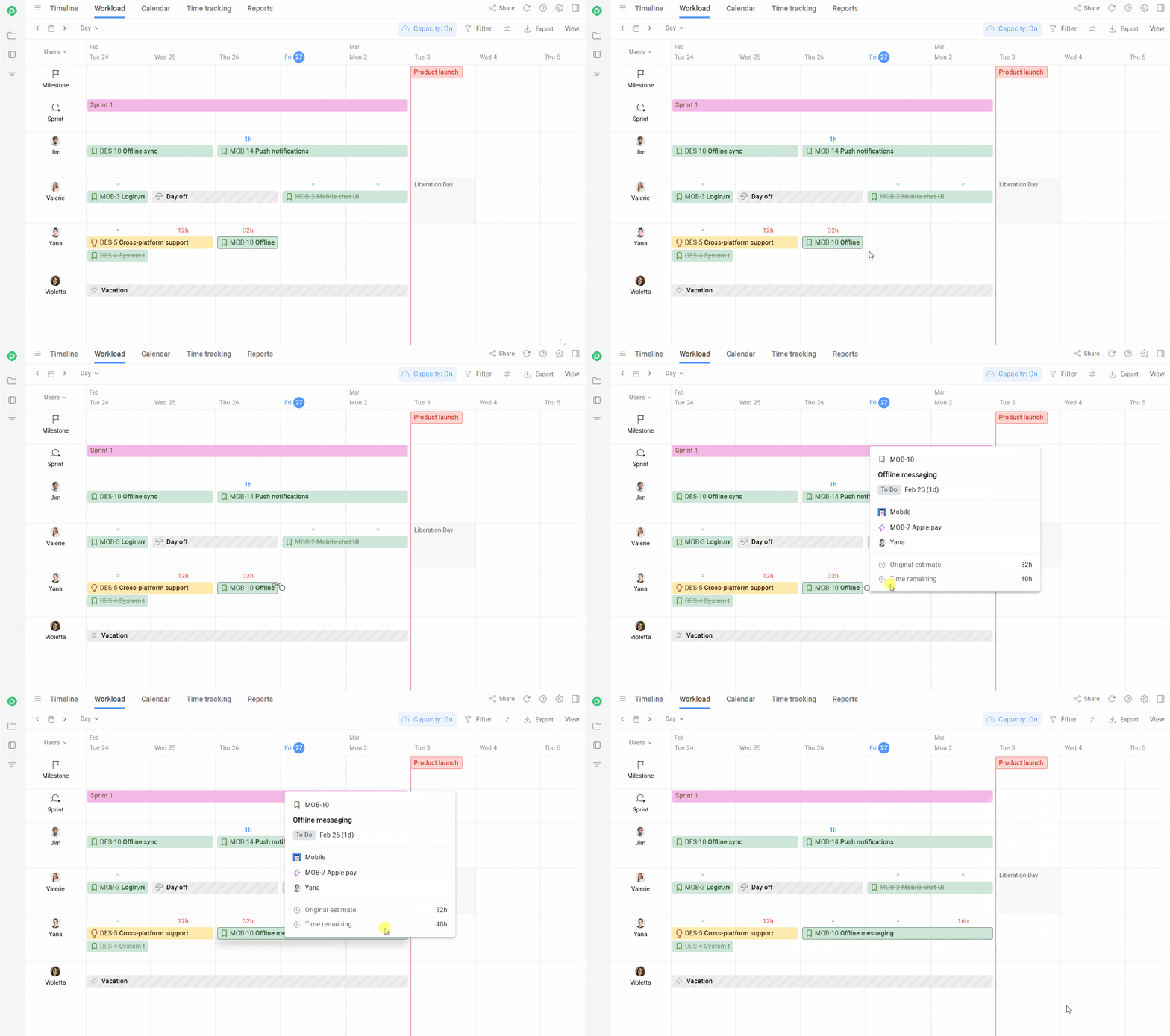
Planyway lets you take vacations, holidays, and time off into account. Also, capacity can be set differently for different team members, which perfectly covers the case of part-time employees or freelancers.
As Planyway combines three tools into one: roadmapping, resource planning, and time tracking, it lets you build a smooth flow from a project plan synced with your real resource availability to make sure deadlines can be met within your plans. At the same time, time tracking allows you to evaluate your team's productivity and see whether your plan aligns with the estimates, so you can make adjustments as needed.
How to сhoose the right setup for resource planning in Jira
Let’s be honest: technically, you can manage project resources even in a spreadsheet. Many teams do.
But the real question is how much time are you ready to spend maintaining all of that manually, and how much visibility and control do you actually need?
If your setup is simple, spreadsheets might work for a while. But as soon as your team grows, projects overlap, and priorities shift — things get messy fast. That’s when having a proper tool starts to make a real difference for project managers.
A good way to figure out what works for you is to test a few options without committing upfront. Many apps on the Atlassian Marketplace offer a free trial, so you can see how they fit into your workflow before making a decision. Planyway offers a free trial too, giving you full access to team workload distribution and capacity planning, timeline and roadmap views across projects, and time tracking and reporting features, all as part of the free trial.


FAQ
Jira, for all its strengths as a project management tool, does not include any dedicated resource management tools for project managers on Free or Standard tiers (besides simple Jira resource allocation). With Jira Premium, users can unlock Jira Plans, which can help them with team or sprint-level capacity management. But if users want to manage resources effectively as individuals, even Jira Plans won't suffice.
Jira is not built for resource management out of the box besides simple resource allocation. With Jira Premium, you get Jira Plans to manage resources effectively on the team or sprint level, but it has important limitations. These include no workload visibility at the individual level, no way to account for vacations, availability, or part-time schedules, and no clear cross-project view for planning resources across multiple teams. Additionally, there is extra manual work required to keep everything updated and eventually complete tasks.
So yes, you can make it work — but for many teams, it quickly turns into a mix of Jira, spreadsheets, and manual adjustments.
There are quite a few apps built specifically for resource management in Jira as well as for resource allocation, and the right one depends on what exactly you need. Overall, the best Jira resource management tools include Planyway, an all-in-one tool for timeline planning, workload management (team members based), and time tracking, perfect for project managers and team members who value clear visibility and want to reach timely project completion. Tempo (Timesheets + Planner) is strong for time tracking, billing, and capacity planning reports to control project performance, but it requires two separate apps to achieve its full functionality. BigPicture offers advanced project management with Gantt charts, dependencies, resource utilization, and portfolio management. ActivityTimeline focuses on team workload, visualizing available resources, and resource utilization.