15 best planner apps for daily planning in 2026

According to ActivTrak's 2026 State of the Workplace report, focused work time has dropped to a three-year low, and the average focus session now lasts just 13 minutes. A planner app won't make your day less busy, but it helps you protect time for the work that matters.
We compared 15 planner apps on how they handle tasks, calendars, and the daily habit of deciding what gets done today. Some are pure to-do lists, some are calendars with opinions, and a few will plan your day for you.
Key takeaways
- Planyway is best for personal and team planning in Trello and Jira
- Todoist is best for fast task capture and prioritization
- Google Calendar is best for simple, shared scheduling
- Notion is best for building your own planning system
- Motion is best for automatic scheduling
- Any.do is best for minimalist to-do lists
- Sunsama is best for guided daily planning
- Akiflow is best for pulling tasks from many tools into one place
- Routine is best for tasks, calendar, and notes in one app
- Plaky is best for simple team boards
- TickTick is best all-in-one planner with a habit tracker
- Fantastical is best calendar app for Apple users
- Structured is best visual daily planner
- Morgen is best for managing multiple calendars
- Reclaim.ai is best for AI scheduling on top of Google Calendar and Outlook
Planner apps compared at a glance
| App | Best for | Free plan | Paid plans from | Platforms |
|---|---|---|---|---|
| Planyway | Planning in Trello and Jira | Yes (Jira: up to 10 users) | $5/user/month (Trello), $3/user/month (Jira) | Web, iOS, Android |
| Todoist | Task capture and priorities | Yes | $5/month billed annually | Web, desktop, mobile |
| Google Calendar | Shared scheduling | Yes | Gemini features in Google Workspace | Web, mobile |
| Notion | Custom planning systems | Yes | $10/user/month billed annually | Web, desktop, mobile |
| Motion | Automatic scheduling | No (7-day trial) | $19/seat/month | Web, desktop, mobile |
| Any.do | Simple to-do lists | Yes | $4.99/month billed annually | Web, desktop, mobile |
| Sunsama | Guided daily planning | No (14-day trial) | $17/month billed annually | Web, desktop, mobile |
| Akiflow | Centralizing tasks | No (7-day trial) | $19/month billed annually | Web, desktop, mobile |
| Routine | Tasks, calendar, and notes | Yes | $5/month | Mac, Windows, Linux, web, mobile |
| Plaky | Small team boards | Yes | $3.99/seat/month billed annually | Web, desktop, mobile |
| TickTick | Tasks plus habits | Yes | $49.99/year | Web, desktop, mobile |
| Fantastical | Calendar on Apple devices | Yes (basic) | $4.75/month billed annually | Apple devices, Windows |
| Structured | Visual daily timeline | Yes | Monthly, yearly, or lifetime Pro | iOS, Mac, Android |
| Morgen | Multiple calendars | No (14-day trial) | $15/month billed annually | Desktop, mobile |
| Reclaim.ai | AI scheduling in your calendar | Yes (Lite) | $10/user/month billed annually | Web |
How we picked these apps
Planning tools are what we work on every day. The Planyway team has spent years building planning features for Trello and Jira, and many of us managed projects before that, so we've used a long list of planners, calendars, and to-do apps ourselves. Our customers often come to us after trying other tools, and their feedback tells us a lot about what works in a planner and where people give up on one.
Every app on the list had to do at least one of three jobs well: capture and organize tasks, put them on a calendar, or help you decide what to work on today. Prices change often in this category, so treat the numbers below as a snapshot and check the pricing page before you buy.
Top 15 planner apps to try in 2026
1. Planyway: best for project and time management in Trello and Jira
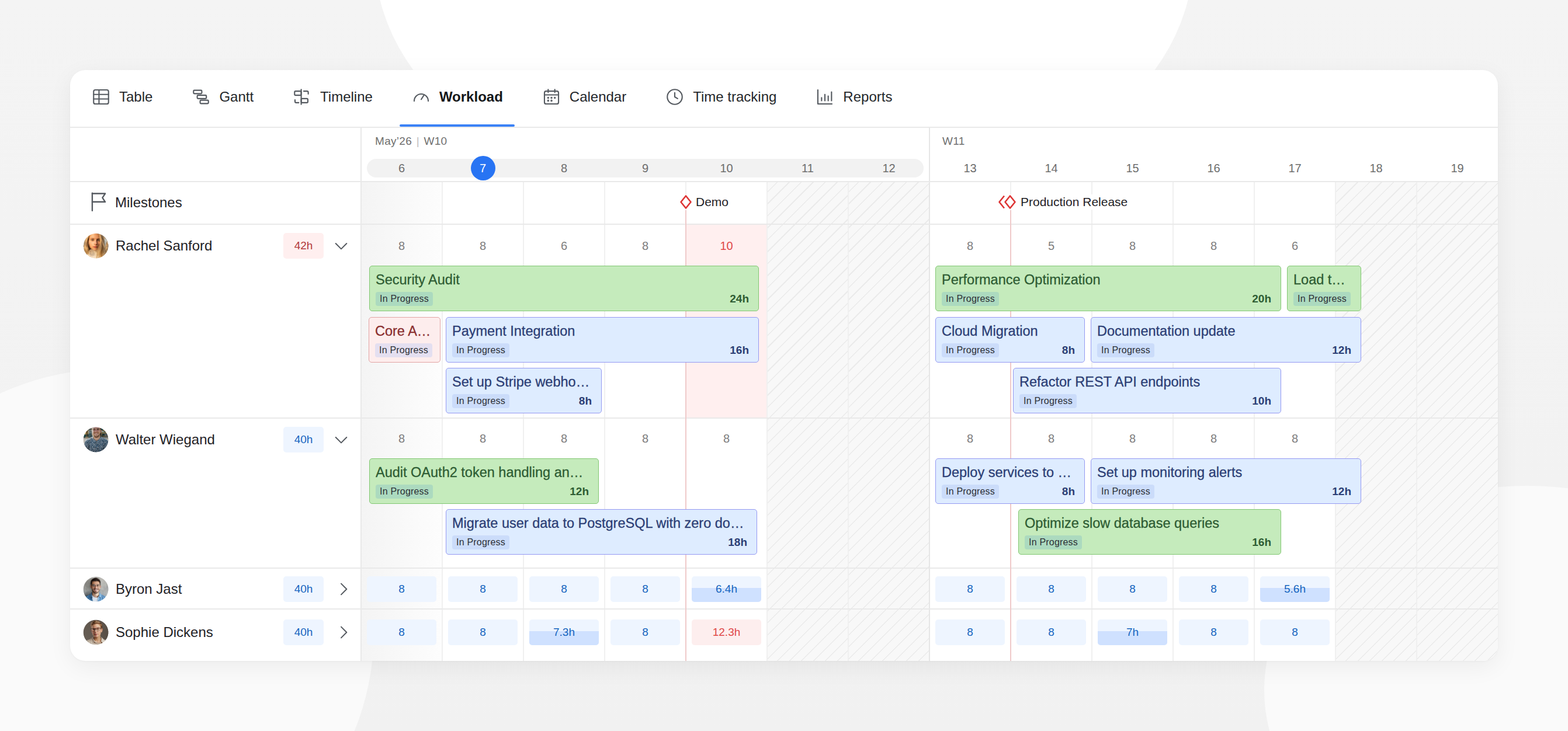
Most planners ask you to move your work into yet another app. Planyway works the other way around: it adds a calendar, timeline, and workload view directly on top of your Trello boards and Jira projects. It works just as well for a single person planning their week (Trello) as for a team juggling several projects (Trello and Jira), covering the full planning cycle for both.
Key features in Planyway for Trello:
- Calendar and multi-board view. Cards from all your Trello boards appear on one calendar, where you can drag them to plan your day, week, or month.
- Time tracking and estimates. Each card can carry an estimate and tracked time, and reports compare the two.
- Recurring tasks and reminders. Repeating tasks and reminders fill a gap Trello leaves on its own.
- Workload. The workload view shows how busy each teammate is before the next card goes to them.
- Calendar sync and mobile apps. Planyway syncs with Google Calendar, Outlook, and iCal, and the iOS and Android apps keep your schedule at hand.
Key features in Planyway for Jira:
- Gantt chart and roadmap. Jira issues and epics sit on a timeline with dependencies and epic milestones.
- Resource management and workload report. Each team member's capacity is visible, so overload shows up early.
- Time tracking with planned vs. tracked reports. Planned effort and actual time spent appear side by side.
- Portfolio view. The whole issue hierarchy from different projects fits in one spreadsheet-like view.
- Risk AI Agent. An AI agent flags risks in your project plan.
Pros:
- No duplicate data: your plan is built from cards and issues you already have.
- Works for personal planning in Trello and for multi-team planning in Jira.
Cons:
- Only works with Trello and Jira, so it isn't a standalone planner.
- Advanced features in Trello need a paid plan (there's a free trial to test them first).
Pricing: Trello: free plan, paid plans from $5/user/month. Jira: free for up to 10 users, then from $3/user/month.
Best for: individuals and teams who already work in Trello or Jira.
2. Todoist: best for task capture and prioritization
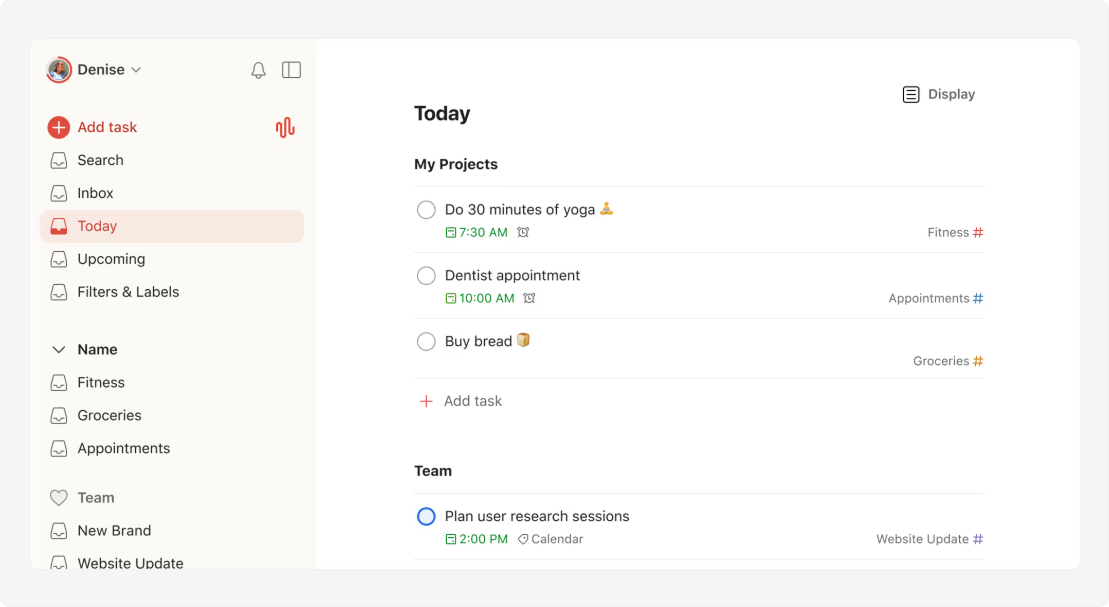
Todoist has been a go-to to-do app for over a decade because it stays out of your way. A task typed in plain English lands in the right project with the right date. It's built for managing tasks quickly and suits people who juggle many small, different tasks and need a reliable way to decide what comes first.
Key features:
- Natural language input. "Send report every Friday at 4 pm" creates a recurring task with a due time.
- Projects, priorities, and labels. Projects group tasks, and filters build views like “high-priority tasks due this week” to surface relevant tasks.
- Ramble voice capture. Spoken to-dos turn into tasks with dates and projects.
- Calendar integration. Scheduled tasks sync to Google Calendar or Outlook on every plan, and Pro adds a calendar layout inside Todoist.
Pros:
- Very fast task capture on every platform.
- A mature app with a large library of integrations.
Cons:
- The free plan is capped at 5 personal projects, and the calendar view inside Todoist needs Pro.
- The Google Calendar sync is one-way: tasks appear in your calendar, but calendar events don't become tasks.
Pricing: Free; Pro $5/month billed annually ($7 monthly); Business $8/user/month billed annually ($10 monthly).
Best for: individuals and students who want a fast, dependable task list.
3. Google Calendar: best for simple scheduling
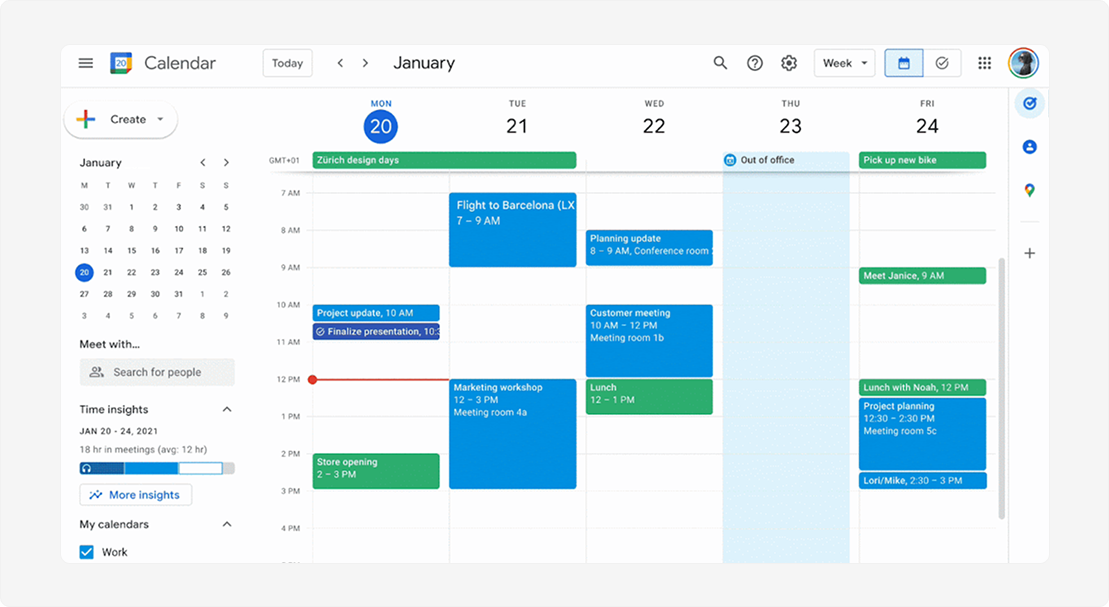
Google Calendar is the calendar most people already have, and that's its biggest strength: almost all the other apps on this list connect to it. It won't handle task management in any depth, but for events, reminders, and shared schedules, it's hard to beat.
Key features:
- Event scheduling and reminders. Quick event creation, recurring events, and notifications on every device.
- Gmail integration. Google can automatically create calendar events from flight and booking emails, and Gemini's “Help me schedule” suggests open slots right in your reply.
- Google Tasks. Basic to-dos with due dates appear next to your events.
- Gemini scheduling. On eligible Google Workspace plans, Gemini suggests times that work for all attendees and shows a one-click reschedule option when people decline.
Pros:
- Free, familiar, and available everywhere.
- Most other productivity apps connect to it, so it works as the backbone of your setup.
Cons:
- Limited task management: no priorities, projects, or subtasks.
- Gemini scheduling needs a paid Workspace plan (Business Standard or higher) and works on the web only, not in the mobile apps.
Pricing: Free for personal use; Gemini scheduling features with Google Workspace.
Best for: anyone who needs a reliable shared calendar, especially teams already on Google tools.
4. Notion: best for building your own planning system
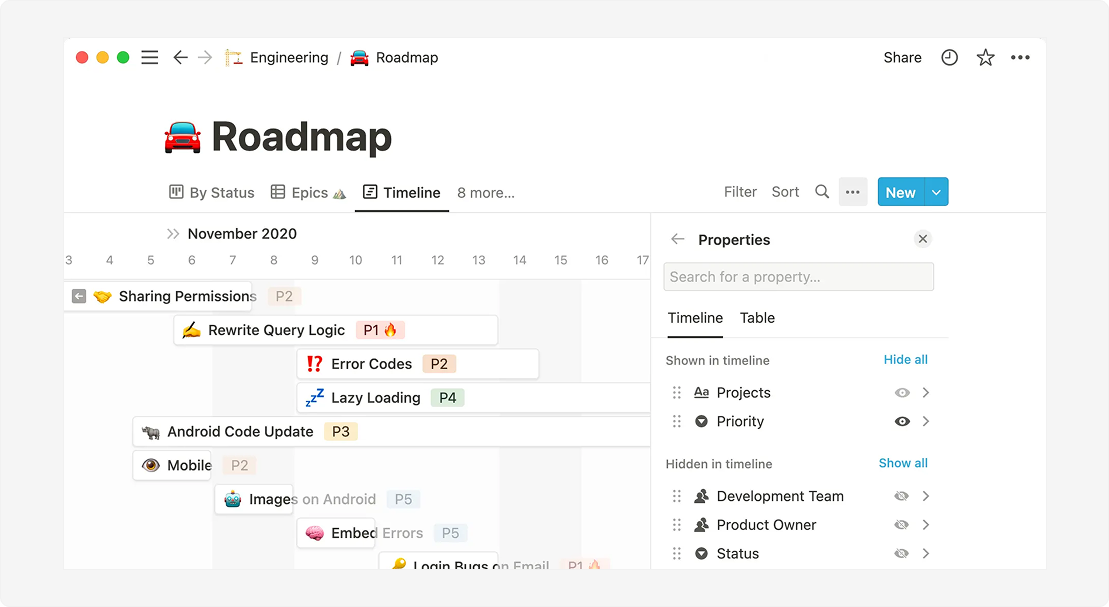
Notion gives you building blocks instead of a ready-made planner. You can turn them into exactly the planner you want, from a simple daily page to a full life-and-work dashboard. If you enjoy designing your own productivity systems, few tools give you more room.
Key features:
- Databases and templates. Databases work as task lists, a habit tracker, or a weekly planner, and thousands of community templates offer a head start.
- Notion Calendar. A free companion app that shows your Notion tasks and Google Calendar events side by side.
- Docs and wikis. Notes, plans, and projects share one workspace.
- Notion Agent. On the Business plan, AI can draft, summarize, and run repetitive work across your workspace.
Pros:
- Very flexible, with a huge library of templates.
- Notes, docs, and tasks live in one place.
Cons:
- Takes time to set up, and the learning curve can put beginners off.
- Notion's free plan only includes a trial of the AI features; the full agent is on Business.
Pricing: Free; Plus $10/user/month billed annually; Business $20/user/month billed annually.
Best for: creatives, small businesses, and anyone who likes building a system from scratch.
5. Motion: best for automatic scheduling
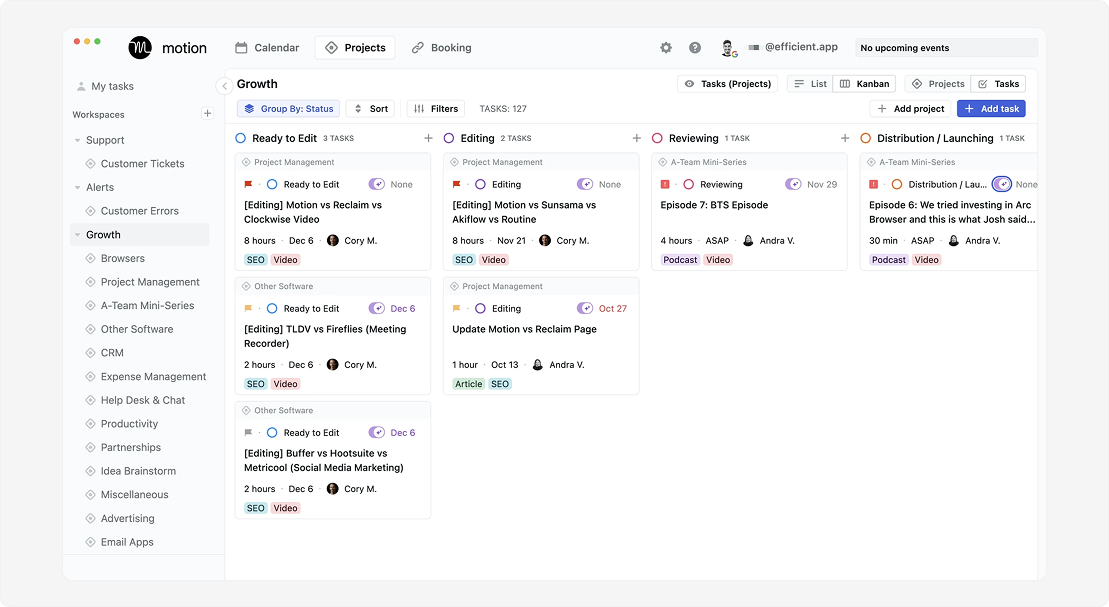
Motion is for people who'd rather not plan at all. You add tasks with deadlines and priorities, and Motion builds your schedule, then rebuilds it every time a meeting moves or a task runs long. It has also grown into a broader AI workspace with docs, meeting notes, and AI agents that run whole workflows.
Key features:
- AI scheduling. Tasks go on your calendar based on deadlines, priority, and free time.
- Automatic rescheduling. Unfinished tasks and conflicts get reshuffled for you.
- Projects and team views. The Business AI plan adds task assignment, team workload, and Gantt timelines.
- Meeting scheduler and AI notes. Booking links and meeting notes in the same tool.
Pros:
- Saves real time if you have more tasks than hours.
- One of the most capable automated scheduling engines you can buy.
Cons:
- No free plan and a short 7-day trial, with billing details required up front.
- Some reviewers report the scheduler moving tasks in ways they didn't expect, plus frustration with billing and refunds.
Pricing: Pro AI from $19/seat/month; Business AI from $29/seat/month; annual billing saves 33%. AI features use a monthly credit allowance.
Best for: busy professionals and managers with packed calendars.
6. Any.do: best for minimalist to-do lists
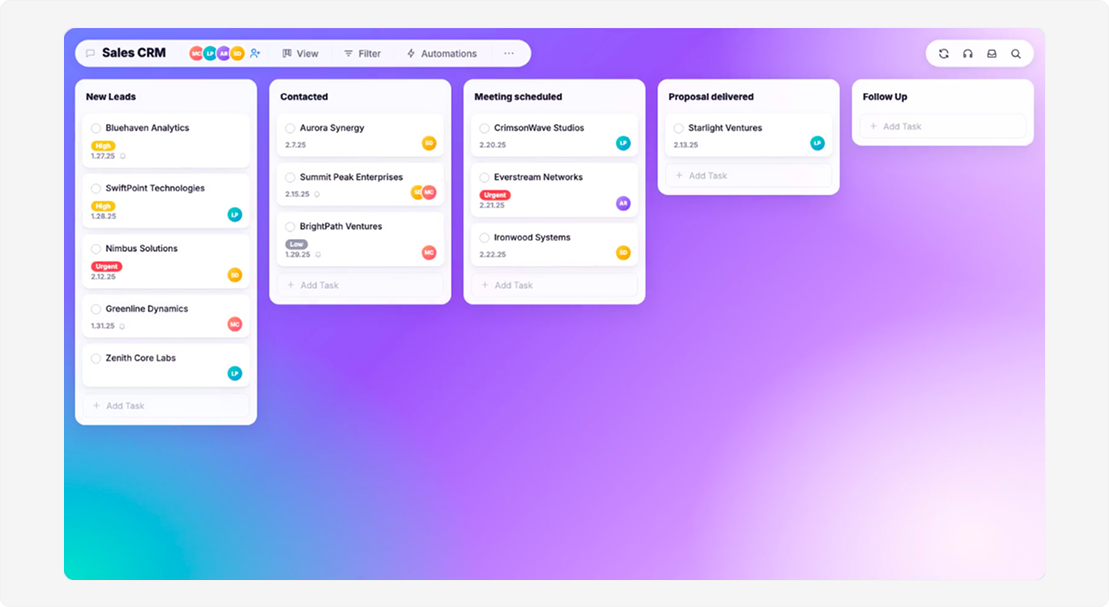
Any.do is a clean, friendly to-do app for people who want to get organized without learning a system. It covers personal lists, a daily planner, and shared family lists in one place.
Key features:
- Daily planner. A morning review takes a few taps and turns your list into a plan for the day.
- Smart reminders. Premium adds location-based reminders and reminders through WhatsApp.
- AI planning. Premium turns goals into task lists and suggests where they fit in your day.
- Family and team spaces. Shared spaces hold lists, groceries, and projects.
Pros:
- Very easy to start with.
- Works for both personal and household planning.
Cons:
- Recurring tasks and color tags need Premium.
- Fewer power-user options than Todoist or TickTick.
Pricing: Free; Premium $4.99/month billed annually ($7.99 monthly); Family $8.33/month billed annually for 4 members.
Best for: personal use and people who value simplicity.
7. Sunsama: best for guided daily planning
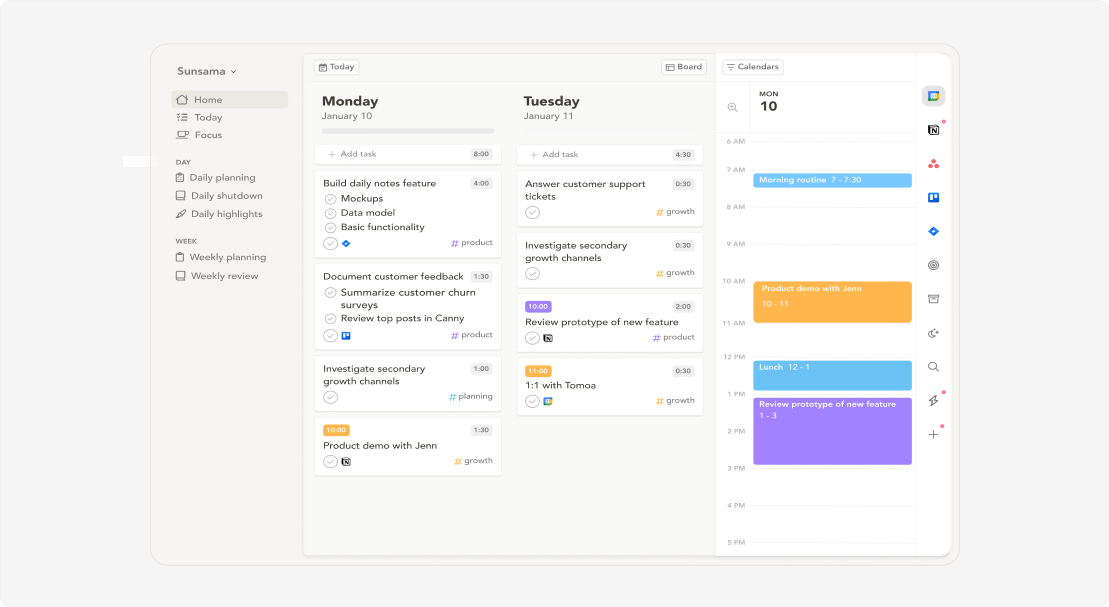
Sunsama is less about storing tasks and more about building a daily planning habit. Each morning, it walks you through choosing what you can realistically do today. Each evening, it helps you close the day and roll over what's left.
Key features:
- Daily planning ritual. A guided flow pulls tasks from your tools into today's plan.
- Timeboxing. Each task gets a time slot when you drag it onto your calendar.
- Workload warnings. You get a nudge when you plan more than fits in your day.
- Integrations and AI. Pulls tasks from Asana, Trello, Jira, Notion, Gmail, and Slack, with AI, MCP, and Zapier included in the plan.
Pros:
- Helps you avoid overcommitting.
- Brings work from many tools into one daily view.
Cons:
- No free plan.
- Pricier than most to-do apps, which makes it hard to justify if you only need a list.
Pricing: $17/month billed annually ($22 monthly); 14-day free trial, no card needed.
Best for: professionals who want a calm, intentional daily routine.
8. Akiflow: best for centralizing tasks from different tools
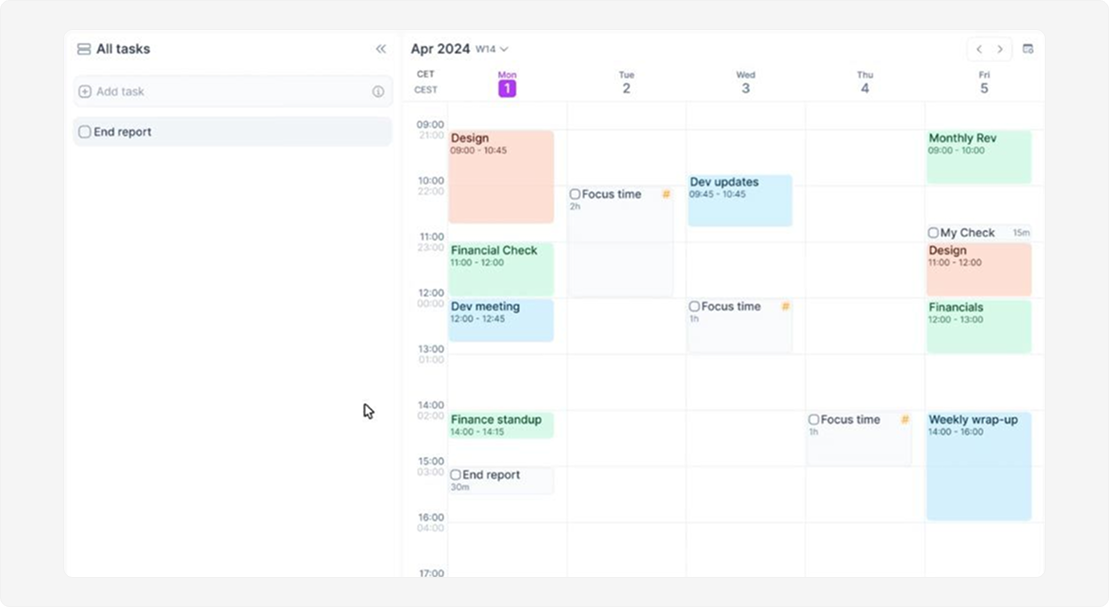
Source: Akiflow official website (akiflow.com)
Akiflow solves a specific problem: tasks scattered across email, Slack, Notion, and a dozen other apps. It pulls them into one inbox, so you can sort them and drag them onto your calendar.
Key features:
- Universal inbox. Collects tasks from email, Slack, and other connected tools.
- Command bar. Keyboard shortcuts let you create tasks and schedule them in seconds.
- Time blocking. Tasks move from the inbox straight onto your calendar with a drag.
- Aki AI assistant. The built-in assistant sorts and schedules tasks on request.
Pros:
- A very fast workflow once you learn the shortcuts.
- Ends the "where did I write that down?" problem.
Cons:
- No free plan, and you need a card to start the 7-day trial, which includes all the features of Pro.
- The keyboard-first design takes some getting used to.
Pricing: $19/month billed annually ($34 monthly).
Best for: power users and busy professionals who work across many tools.
9. Routine: best for tasks, calendar, and notes in one place
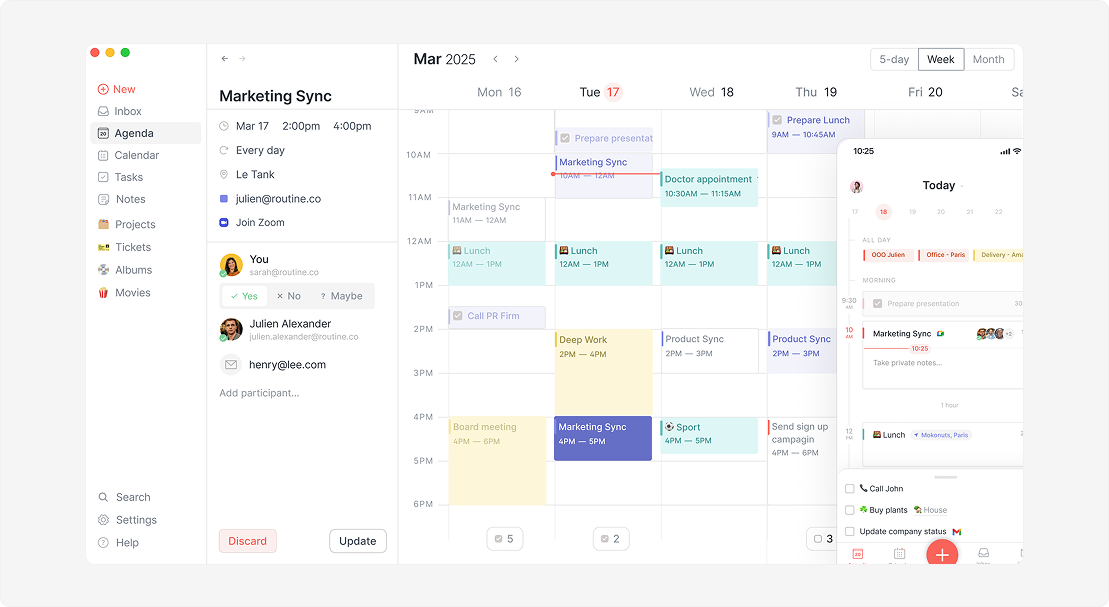
Routine combines to-do lists, your calendar, and notes in a single workspace, so the notes from a meeting sit right next to the tasks it created. It's a good fit if you're tired of switching between three separate apps every day.
Key features:
- Connected notes. Notes link to tasks, meetings, and contacts, and paid plans add AI help with meeting notes.
- Quick capture. A keyboard shortcut captures tasks from anywhere.
- Time blocking. From the Personal plan up, tasks get their own slots in your calendar.
- Offline mode. Every plan works without an internet connection.
Pros:
- The free version already includes tasks, calendars, notes, and an AI assistant.
- Available on Mac, Windows, Linux, web, iOS, and Android.
Cons:
- The free plan allows only 3 integrations, and time tracking starts at Professional.
- A smaller community and fewer templates than the bigger players.
Pricing: Free; Personal $5/month; Professional $10/month; Business $15/seat/month.
Best for: individuals who want one hub for tasks, meetings, and notes.
10. Plaky: best for simple team boards
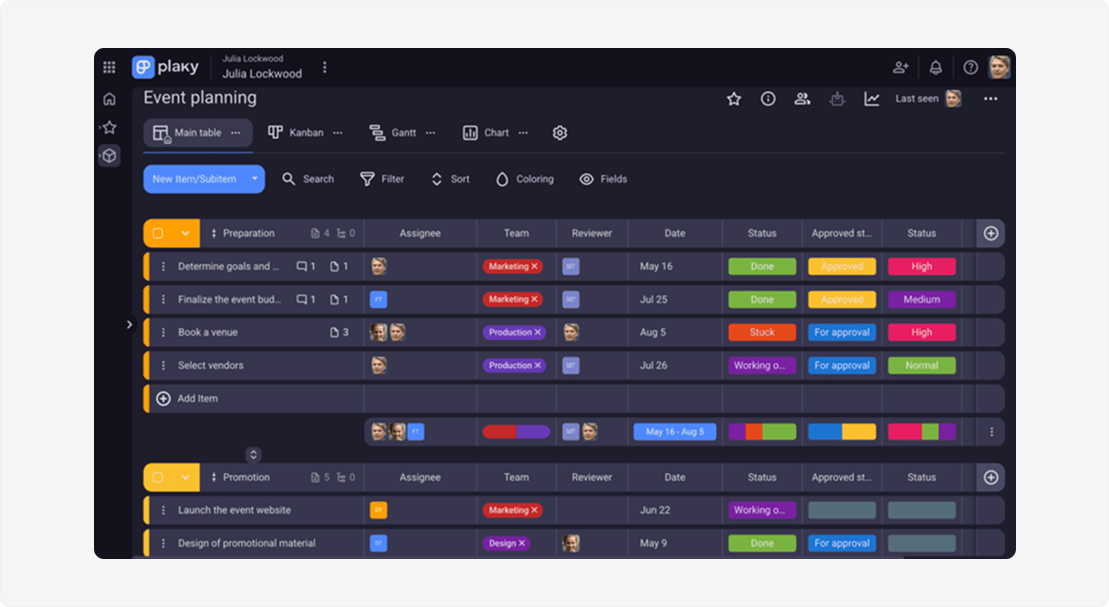
Plaky is a lightweight board-based project management tool for small teams that need to assign work and track progress without a complex setup or a big budget.
Key features:
- Task assignment and statuses. Every item shows its owner and current status.
- Multiple views. Table and Kanban views come free, and Gantt is on Pro.
- Real-time collaboration. Comments, mentions, and updates in one place.
- Generous free plan. Unlimited users and boards at no cost.
Pros:
- Affordable team collaboration for small teams.
- Easy to adopt without training.
Cons:
- The free plan limits each board to 6 custom fields, and automation capabilities start on Pro with 1,000 automation actions a month.
- Built for team boards, so it's not much of a personal daily planner.
Pricing: Free; Pro $3.99/seat/month billed annually ($4.99 monthly).
Best for: small teams and small businesses.
11. TickTick: best all-in-one planner with a habit tracker
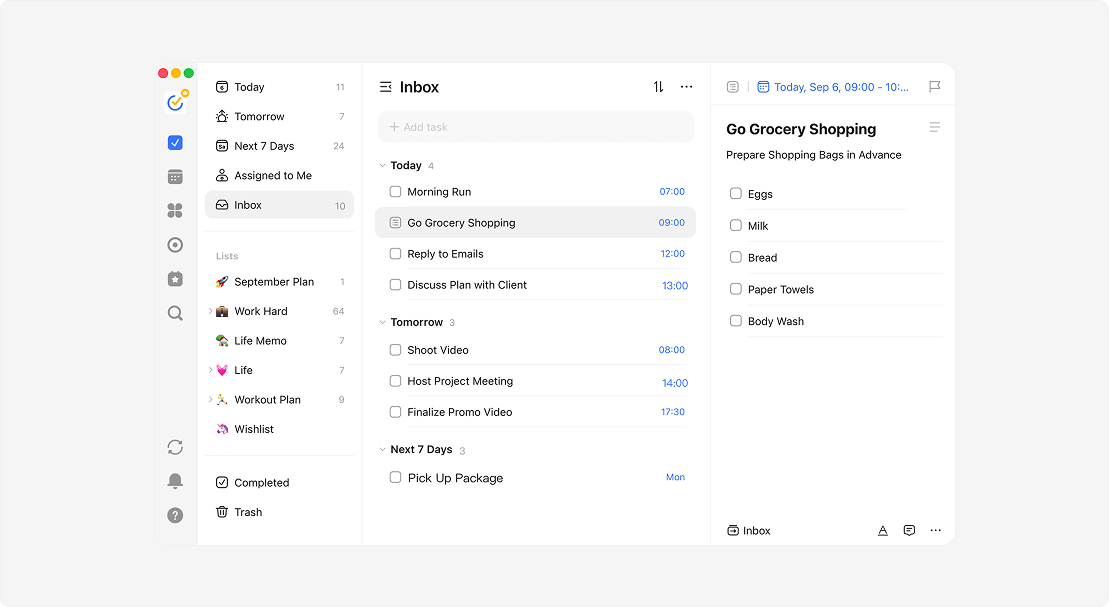
TickTick packs a to-do list, calendar, habit tracking, and a focus timer into one app. It's a strong pick if you want one place for both tasks and routine planning.
Key features:
- Habit tracker. Daily habits, streaks, and stats sit next to your tasks.
- Pomodoro focus timer. A focus session starts right from a task.
- Calendar views. Daily, weekly, and monthly views with drag-and-drop calendar scheduling.
- Eisenhower Matrix. Tasks sort into four quadrants by urgency and importance.
- Natural language input. Dates and times typed the way you'd say them become due dates.
Pros:
- Lots of features in one app, including focus tools most competitors charge extra for or skip.
- Strong mobile apps.
Cons:
- The free plan caps you at 9 lists, 5 habits, and one attachment a day.
- TickTick raised its Premium price in 2026, so it's no longer the bargain it used to be.
Pricing: Free; Premium $49.99/year.
Best for: individuals who want tasks, habits, and focus in one app.
12. Fantastical: best calendar app for Apple users
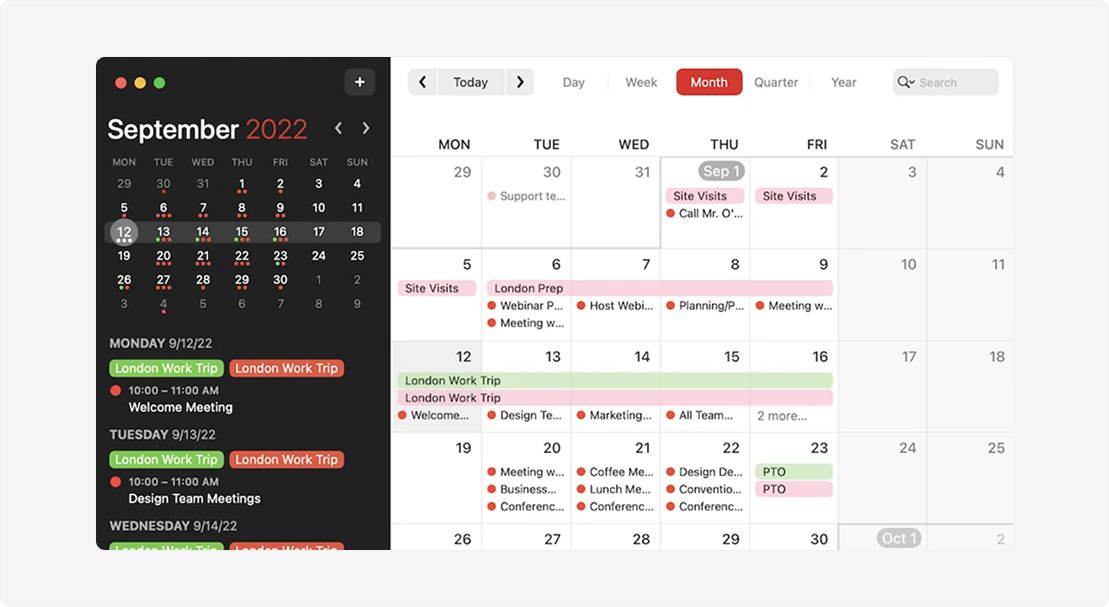
Fantastical is a polished calendar app that understands plain English: "Lunch with Anna Friday at 1pm" becomes an event as soon as you type it. It brings Google, iCloud, Exchange, and Outlook calendars into one view and fits naturally into the Apple ecosystem.
Key features:
- Natural language input. A typed sentence is enough to schedule events and reminders.
- Calendar sets. Work and personal calendar sets switch automatically based on time or location.
- Openings and meeting proposals. Booking links and multi-slot meeting proposals make scheduling with others easier.
- Tasks and reminders. Works with Apple Reminders, Todoist, and Google Tasks.
Pros:
- One of the most refined calendar apps on Apple devices, with deep Apple Calendar and Reminders support.
- Also available on Windows.
Cons:
- Calendar sets, meeting proposals, and other helpful features need Premium.
- A calendar first, with basic task handling.
Pricing: Free basic version; Individual $4.75/month billed annually ($6.99 monthly); 14-day free trial.
Best for: Apple users who live in their calendar.
13. Structured: best visual daily planner
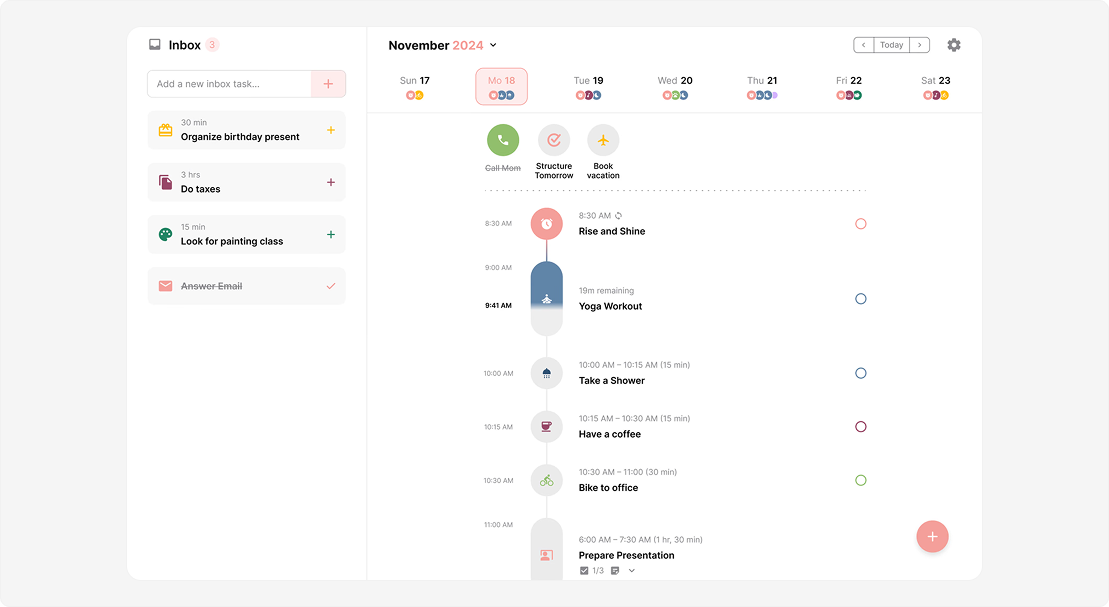
Structured replaces the blank to-do list with a visual timeline of your day. Tasks, events, and routines line up in order, so you see at a glance when you're busy and when you're free. Its visual organization is the reason people pick it.
Key features:
- Visual timeline. Your whole day appears as color-coded blocks.
- Inbox. Ideas land in an inbox first and get scheduled later.
- Focus timer. A built-in timer keeps you on one task without leaving the app.
- AI planning and Replan. On Pro, AI drafts your day, and Replan moves missed tasks forward.
- Calendar sync and recurring routines. Also on Pro.
Pros:
- Makes time blocking feel approachable for beginners.
- Popular with people who have ADHD, who often mention it in reviews.
Cons:
- Calendar sync and recurring tasks are Pro-only.
- Not built for complex projects.
Pricing: Free; Pro available monthly, yearly, or as a one-time lifetime purchase.
Best for: visual thinkers and anyone new to time blocking.
14. Morgen: best for managing multiple calendars
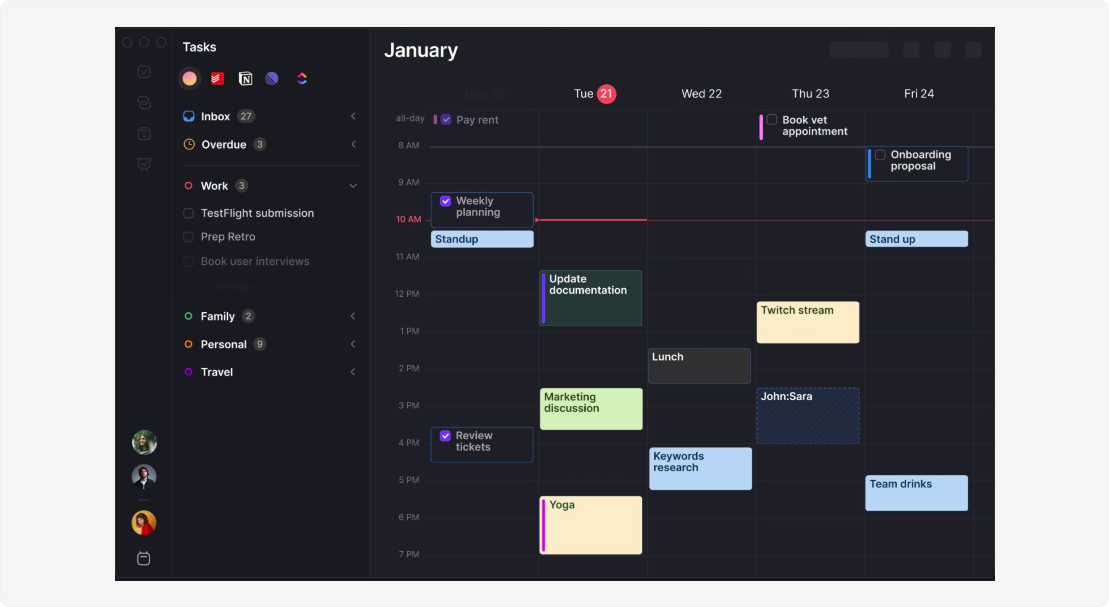
Morgen is built for people with more than one calendar: work, personal, maybe a client's Outlook. It merges them into one view and brings in tasks from your other tools, so you can plan your day in one place.
Key features:
- Multiple calendar support. Google, Outlook and Microsoft 365, and iCloud in one view.
- Task integrations. Pulls tasks from Notion, ClickUp, Linear, Todoist, Google Tasks, and more.
- Time blocking. Blocks sync across all connected calendars.
- AI Planner. Suggests when to schedule tasks based on your real availability.
Pros:
- One view for multiple calendars and task lists, including your personal calendar.
- Desktop apps for Windows, Mac, and Linux, plus iOS and Android.
Cons:
- No free plan after the 14-day trial.
- Pricier than basic calendar apps if you only need one calendar.
Pricing: $15/month billed annually ($30 monthly); 14-day trial, no card needed.
Best for: consultants, freelancers, and anyone juggling several calendars.
15. Reclaim.ai: best for AI scheduling in Google Calendar and Outlook
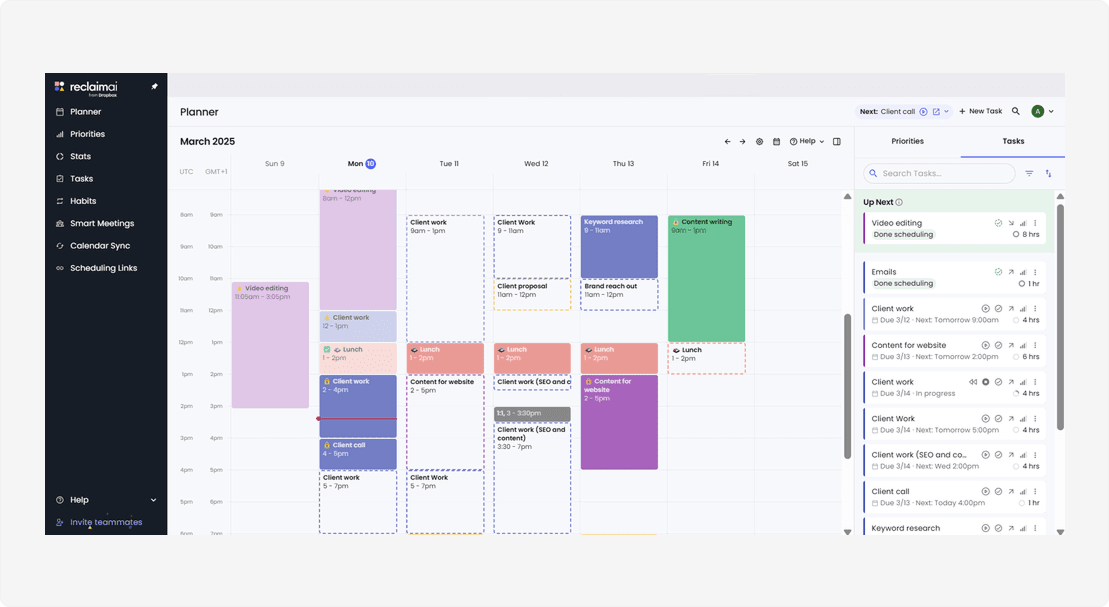
Unlike a standalone scheduling app, Reclaim works on top of the calendar you already use. Once it knows your tasks, habits, and focus goals, it finds time for them and moves them when new meetings appear.
Key features:
- Auto-scheduled tasks. Tasks go into open time based on priority and deadlines.
- Habits. Recurring time for workouts, lunch, or deep work stays protected.
- Focus time. Blocks of uninterrupted work are defended from new meetings.
- Smart meetings and scheduling links. Recurring meetings land at the best time for everyone, without the back-and-forth.
Pros:
- The free Lite plan is usable on its own.
- Cheaper than Motion for similar scheduling features.
Cons:
- Setting up your priorities and habits takes time at the start.
- No native iOS or Android app.
Pricing: Free Lite plan; Starter $10/user/month billed annually ($12 monthly); Business $15/user/month billed annually.
Best for: professionals who want AI scheduling without switching calendars.
How to choose the best planner app
There's no single winner among these daily planner apps. Most task management apps cover the basics, so the right one is the one that fits how your days work. Start with your main use case, then check a few key features.
Features worth checking
- Task management. Can you capture a task in seconds and add task details like priority, notes, and subtasks?
- Calendar integration. Does it sync with Google Calendar, Apple Calendar, or Outlook, and in which direction? A two-way Google Calendar integration means changes made in either app show up in both.
- Time blocking and scheduling. Can you drag tasks onto your calendar, or let the app find time for them?
- Recurring tasks and reminders. Can you set up routines once and get custom reminders for them?
- Habit tracking and focus tools. A built-in habit tracker or Pomodoro timer means one less app.
- Team features. Shared views and task assignment matter if you plan with others.
- Ease of use. A short learning curve and apps for every device you use.
- Pricing. Check what the free plan includes before you commit, and whether the price you see is monthly or billed annually.
What free plans leave out
Free plans in this category are useful, but each one draws the line somewhere different. Before you settle in, check where your app's limit sits, because it's usually the feature you'll want three weeks in:
- Todoist: 5 personal projects, and no calendar layout inside the app.
- Planyway: Jira is free up to 10 users with all features, Trello is free with basic calendar views, and timeline and time tracking are paid.
- TickTick: 9 lists, 5 habits, and one attachment a day.
- Any.do: recurring tasks and location reminders are Premium.
- Routine: 3 integrations and a limited pool of AI credits.
- Notion: a trial of AI features only.
- Plaky: 6 custom fields per board, and no Gantt view.
- Structured: no calendar sync or recurring routines.
Motion, Sunsama, Akiflow, and Morgen have no free plan at all, only trials of 7 to 14 days. If you're testing one of them, plan a full work week inside the trial, so you see how it handles a real Monday and not only a quiet afternoon.
If you're managing a team
- Look for task assignment, shared calendars, and real-time updates, so everyone sees the same plan.
- Check how busy each person is before assigning work. Workload or resource views help you spot overload early.
- If your team already works in Jira or Trello, choose an app that plans on top of them instead of adding another tool.
- For bigger projects, a Gantt chart or Kanban view helps you see project timelines and dependencies.
Recommended apps: Planyway, Plaky, Motion
If you're organizing your personal life
- Keep it simple: a clean interface matters more than a long feature list.
- Look for recurring tasks, reminders, and habit tracking, so routines run without you rebuilding them every week.
- Make sure the app syncs with the calendar you already use.
Recommended apps: TickTick, Todoist, Any.do, Structured, Planyway for Trello
If your calendar is always overbooked
- Choose an app with time blocking, so every task gets a real slot on your calendar.
- Consider AI scheduling that finds time for tasks and reshuffles them when meetings move.
- If you juggle work and personal calendars, check that the app shows them all in one view.
Recommended apps: Motion, Reclaim.ai, Morgen, Fantastical
If your tasks are scattered across many tools
- Look for an app that pulls tasks from email, Slack, and project tools into one place.
- A guided daily planning flow helps you turn that pile into a realistic plan for today.
Recommended apps: Akiflow, Sunsama, Routine
Conclusion
A planner app earns its place when you open it every morning without thinking about it. For some people that's a fast list like Todoist, for others it's a calendar that schedules itself like Motion or Reclaim, and for teams in Trello or Jira it's a planning layer like Planyway on top of the tools they already use.
Pick one app from the section that matches your days, use it for two weeks, and pay attention to the moment you stop trusting it. That moment tells you more about the right fit than any feature list, including this one.


FAQ
The best free monthly planner app for most people is Google Calendar or TickTick, since both show a clear monthly view at no cost. If you'd rather design your own monthly layout, Notion is a good free monthly planner built from a template. Trello users can get a free monthly calendar across all their boards with Planyway's free plan.
The app that's best for planning depends on what you plan. Todoist and TickTick are the best apps for daily planning when your day is mostly a list of tasks. For packed calendars, Motion and Reclaim.ai are the best planning apps because they schedule tasks for you. Sunsama is best for planning as a daily routine, and Planyway is best for planning teamwork in Trello or Jira.
The best app for a daily planner is one built around the day itself, and among the best daily planner apps, that's Sunsama, Structured, and Any.do. Sunsama guides you through planning each morning, Structured shows your daily plan as a timeline, and Any.do keeps a simple "today" list.
There is no single #1 productivity app, because each one leads in a different job. Todoist is among the most widely used task managers, Google Calendar is the most common calendar, and Notion is a popular choice for comprehensive task management alongside notes. For personal productivity, the #1 app is the one you'll open every day.
Yes, digital planners are worth it for most people. A digital planner handles time management tasks that paper planners can't: it moves unfinished tasks forward, sends reminders, syncs across devices, and shows your calendar next to your to-do list. Paper still wins for people who think better with a pen. If that's you, PDF planner templates on a tablet are a good middle ground between a paper and a digital planner.
A digital planner costs nothing for basic use in many apps, including Todoist, TickTick, Any.do, Notion, and Google Calendar. Paid digital planners usually cost from about $4 to $20 per month. AI-first planners like Motion, Sunsama, and Akiflow cost the most and don't have free plans.