Jira resource allocation & planning for project management (no-nonsense guide)

A Jira assignment is just a name in a dropdown. That name may belong to someone who is already on three projects, covers a support rotation, and is off every other Friday.
This guide covers what Jira resource allocation involves, what Jira gives project managers natively in 2026, where allocation plans tend to break, and a resource management process that still holds up once real work starts.
TL;DR
- Assignment and allocation are not the same things. The Assignee field says who owns a work item. An allocation adds how much of that person's time it takes and in which weeks, and in Jira it exists only when an assignee, an estimate in hours, and dates or a sprint line up.
- Jira's Capacity view (Premium, Enterprise) allocates people to epics on a standard 40-hour week, and Plans sets one capacity number per team per sprint. Neither checks a person's scheduled work items against the hours they really have.
- Plan project work to about 80–85% of real hours and sequence work instead of splitting people 50/50. Then review allocations weekly and compare them with logged time when the project ends.
What is resource allocation in Jira?
Resource allocation in Jira means deciding how much of each person's working time goes to specific Jira work (a project, an epic, or individual work items) over a set period. In project management, “resources” here mostly means human resources: people and their hours.
Every allocation has three parts:
- a person,
- an amount of time (in hours or as a percentage),
- and a period.
“Tom spends 50% of his time on the Checkout epic in October” is an allocation. “Tom is the assignee on CHK-142” is not: it names the owner and says nothing about how much of Tom's week the work takes.
Jira is a project management tool built around work items, so it has no single “allocation” field. An allocation is pieced together from the Assignee field (the person), an estimate (the amount), and dates or a sprint (the period). If one is missing, no report or plan can see the allocation.
Jira resource vs capacity vs allocation management
These three concepts answer different questions:
- Resource management: Who is available to do the work?
- Capacity management: How much time do they have, and how much of it is already committed?
- Allocation management: How much of each person’s capacity are you committing to specific work?
Jira mainly stores the work itself: assignees, estimates, and dates. Resource allocation adds the missing planning layer — connecting that work to the amount of each person’s available time you intend to use.
What Jira gives you for resource allocation
Resource management in Jira as a whole depends on your plan, and each built-in tool works at a different level.
Assignees, boards, and dashboards
On any plan, you can build a cross-project filter and put it on Jira dashboards.
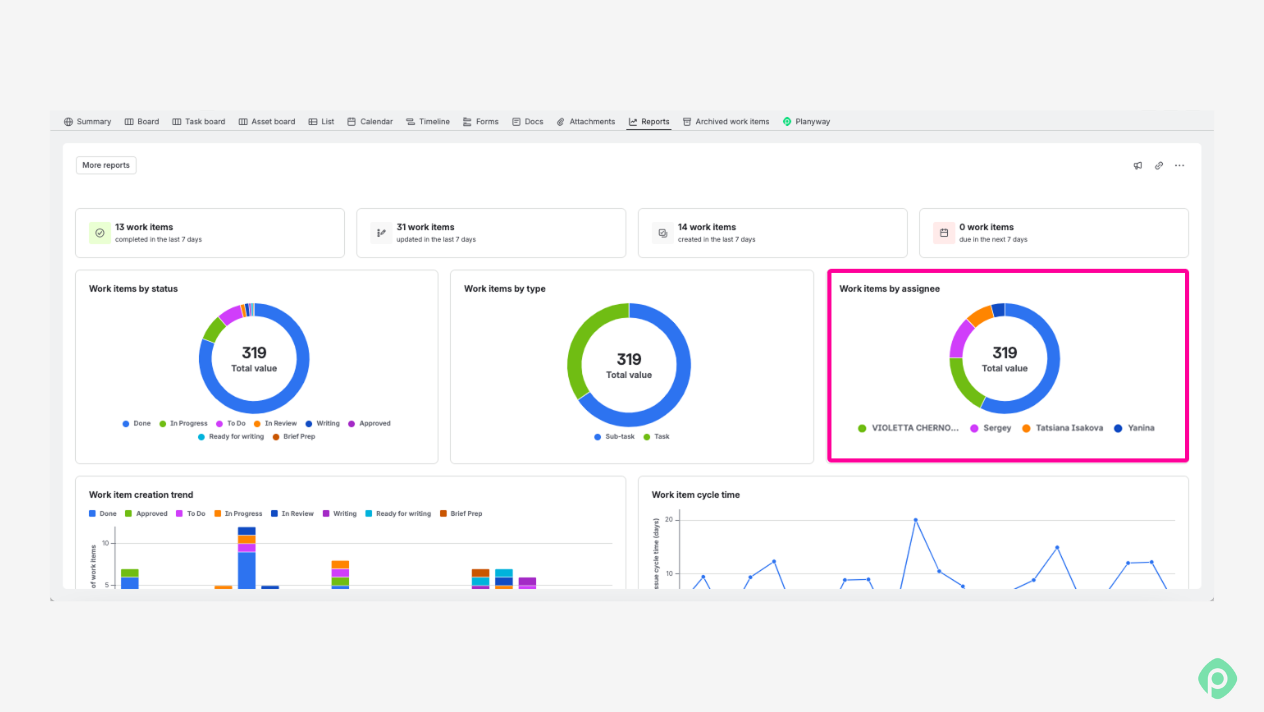
A few gadgets get close to workload tracking:
- The Pie Chart gadget, grouped by Assignee, shows the workload distribution of a filter's work items.
- Two-Dimensional Filter Statistics builds a table such as Assignee × Space, the quickest native way to see who works on multiple projects.
- In company-managed projects, the Workload pie chart and User workload report show remaining estimates per person.
These are fine for tracking tasks and watching project progress. But gadgets count work items, so ten one-hour bugs and ten three-day features look the same in your team's workload. The reports that sum estimates don't know whether someone has 40 hours this week or 24.
Plans: team capacity
With Jira Premium, Plans (formerly Advanced Roadmaps) is Atlassian's advanced project management layer.
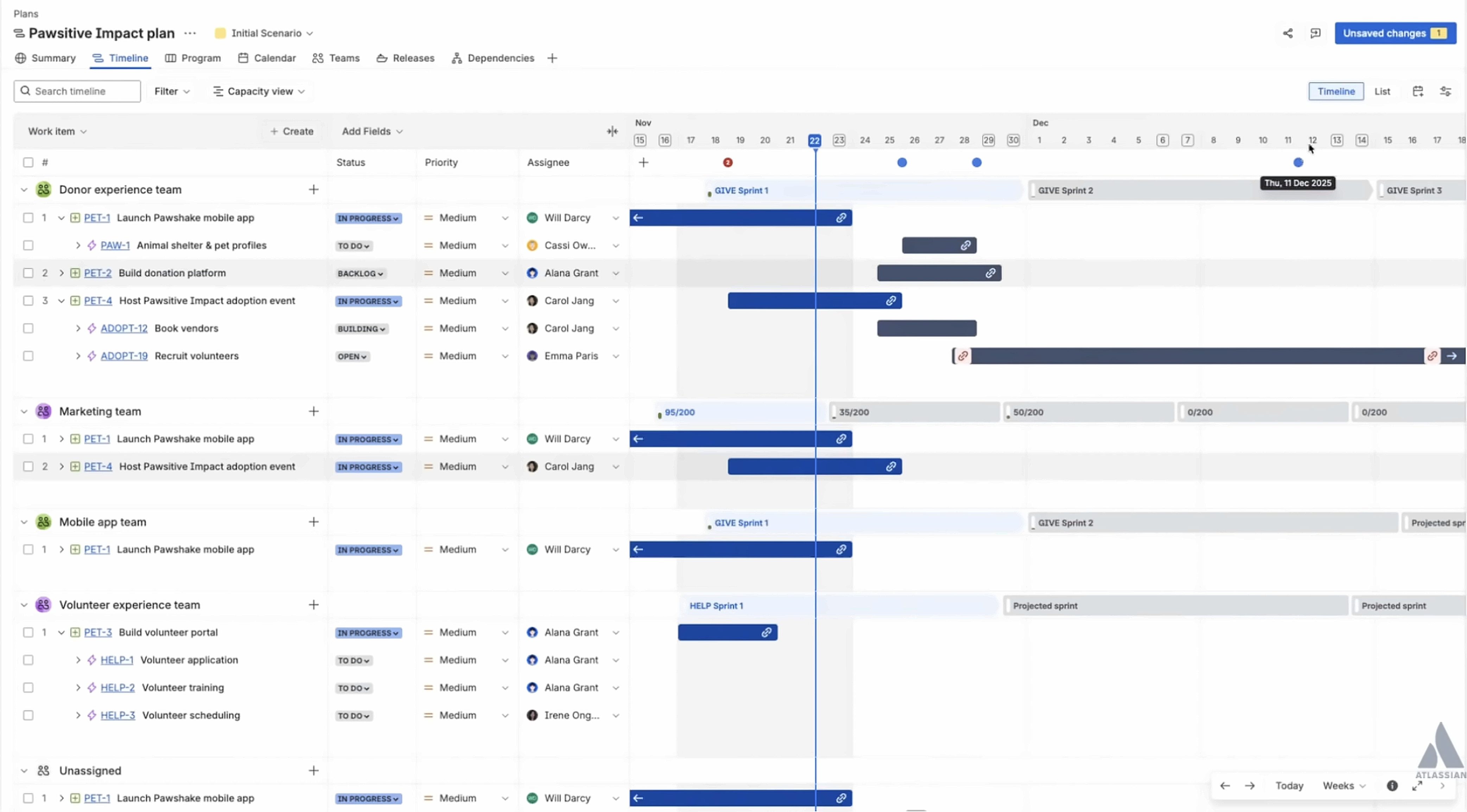
You set capacity for a team per sprint, in story points or time, and schedule work against it on a timeline that works much like Gantt charts. It's handy for project planning and cross-project planning. The catch for Jira resource planning is that capacity is one number per team per sprint: a team with a part-timer and someone on vacation still gets a single figure, adjusted by hand.
Capacity: individual allocation
In July 2026, Atlassian added a Capacity view to Jira Premium and Enterprise, its first native take on capacity planning for individuals.
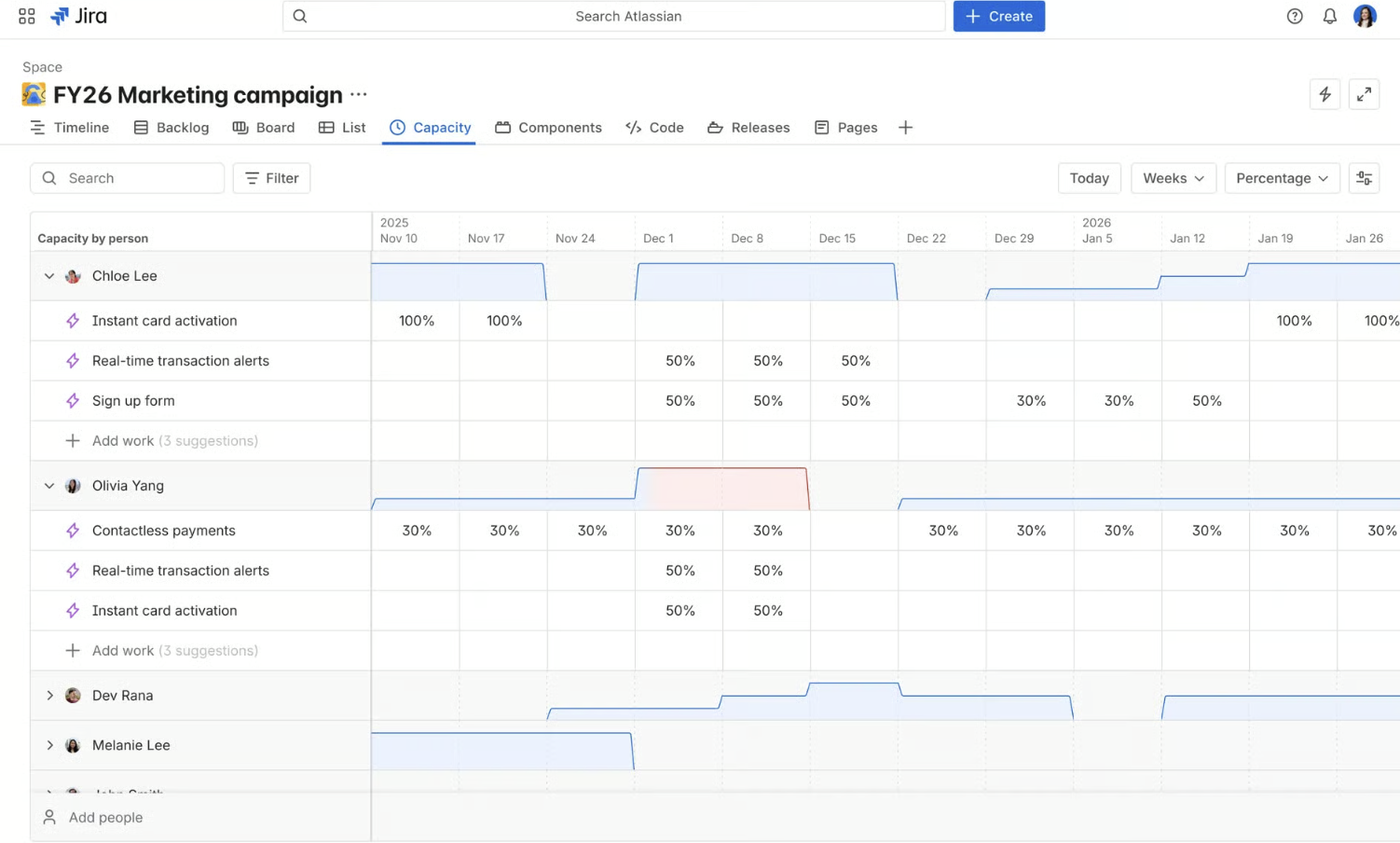
Each person gets a row in a weekly grid, and you allocate resources to epics or projects in percentages, hours, or days. You can add rows for leave, on-call, or training. When someone's weekly total goes over 100%, their bar turns red. Allocations kept in a spreadsheet can be imported as a CSV.
Two limits matter for assigning resources day to day. Allocation happens at the epic level or above, so the view doesn't look at the stories and tasks inside. And each plan is built around a standard 40-hour week rather than each person's schedule.
Where native Jira allocation runs out and how to bridge the gaps
Put together, Jira's resource management tools cover a lot, if you're on Premium or Enterprise. On Free and Standard, you're down to the assignee field, boards, filters, and dashboard gadgets, with no capacity view at all. Even on Premium, though, the gaps show up when you manage allocation person by person:
| What you need | Free and Standard | Premium and Enterprise | What's still missing, even on Premium |
|---|---|---|---|
| Work ownership | An assignee on each work item | Same | Shows who owns the work, not how much of their time it takes |
| Allocation by person | Nothing built in. You filter by assignee on boards and dashboards | Capacity view: percentages, hours, or days per week | Works for epics and higher-level work only, so stories and tasks inside aren't counted |
| Team and person in one view | Sprint estimates and the velocity report | Plans: capacity per team and sprint | One number for the whole team, so one overloaded person hides inside a healthy total |
| Real working schedules | Nothing built in | Capacity flags overload against a standard 40-hour week | Part-time and custom schedules aren't set per person |
| Time off | Nothing built in | Leave as a separate row in Capacity, sprint capacity edits in Plans | Entered by hand, person by person and sprint by sprint |
| Shared work | One assignee per work item | Same | Two people's effort needs subtasks or separate work items |
| Allocations that match real work | Only the assignee field | Allocations in Capacity | Capacity and assignee don't sync. Assigning someone doesn't create an allocation, and an allocation doesn't set an assignee |
Teams fill these gaps with custom fields, a spreadsheet of time off next to Jira, or subtasks for every contribution.
Another option is to add a planning app from the Atlassian Marketplace. Planyway for Jira is one of them.
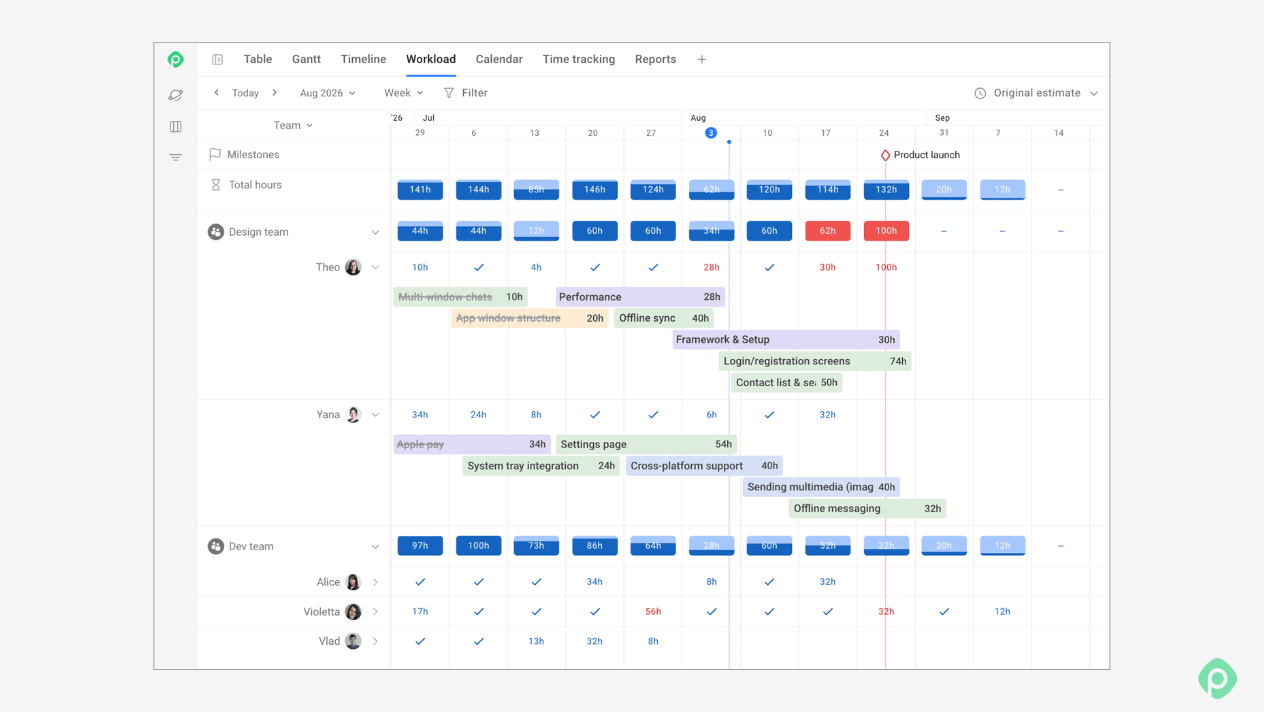
Planyway sits on top of your existing Jira work items and puts each person's scheduled work from all connected projects on one timeline, so workload comes from the actual tasks instead of a separate allocation sheet.
With Planyway, you can:
- Allocate down to tasks. Stories and tasks count toward their assignee's workload, not just epics.
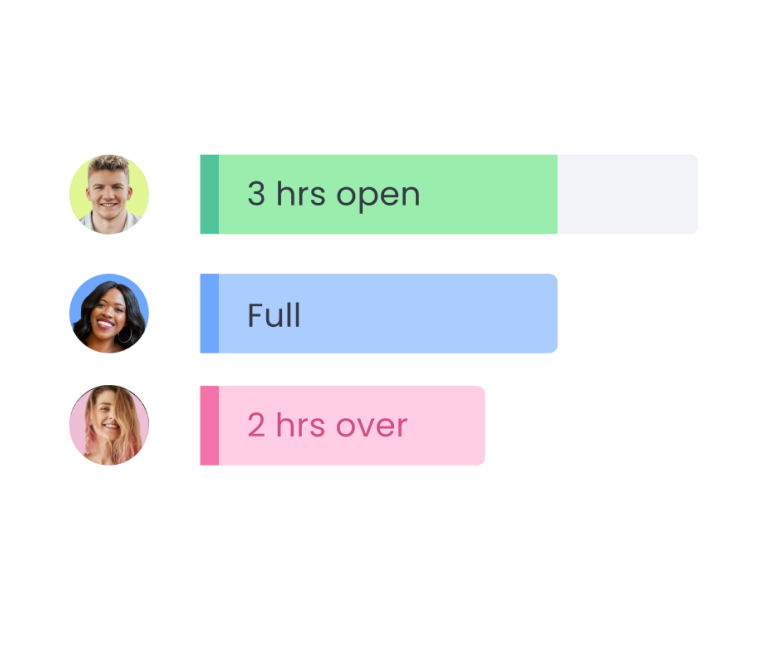
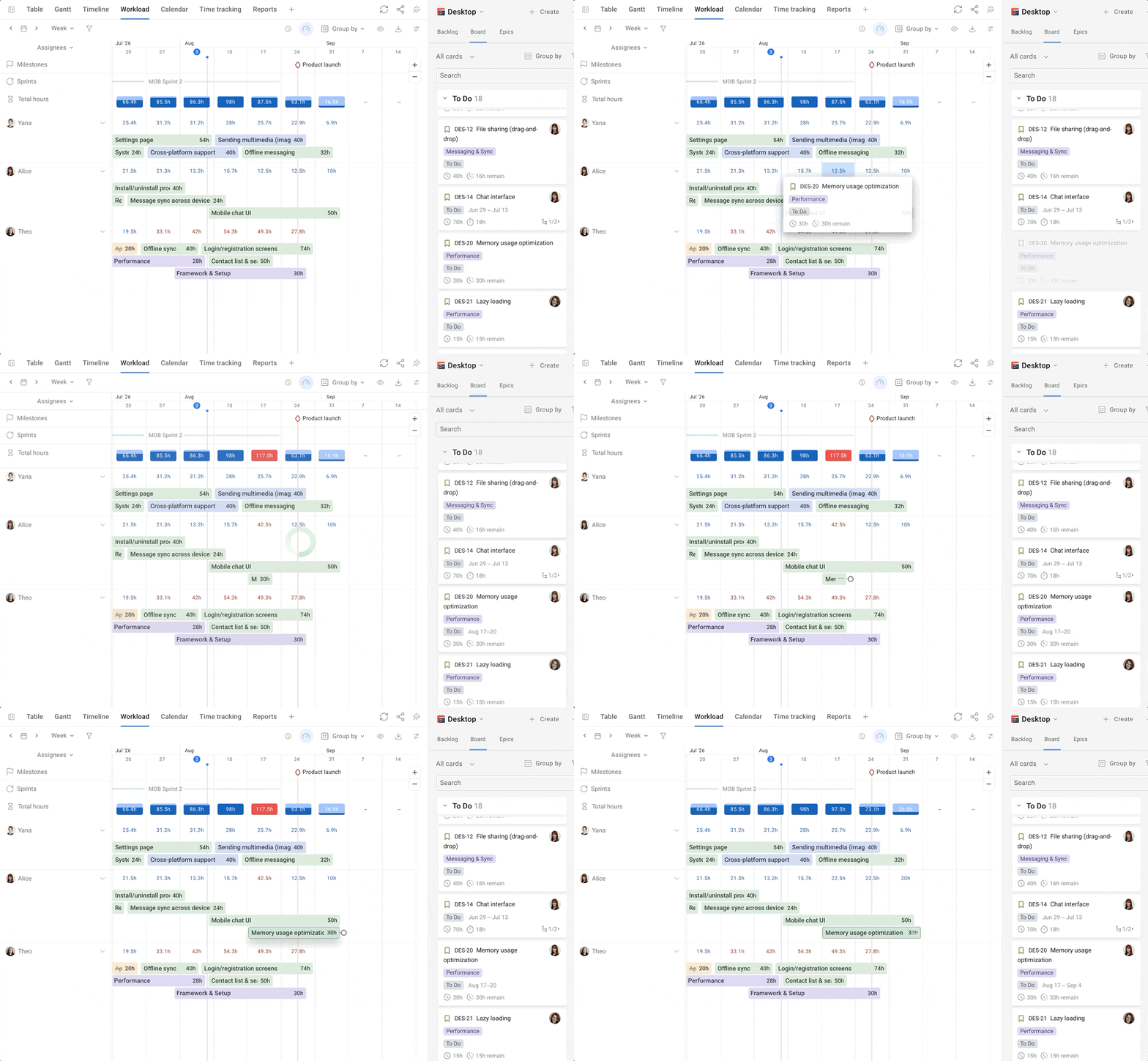
- Switch between team and person. Group the timeline by team, then expand a team to see each person's workload. Indicators show who's under, at, or over capacity, so over-allocation shows up before the week starts.
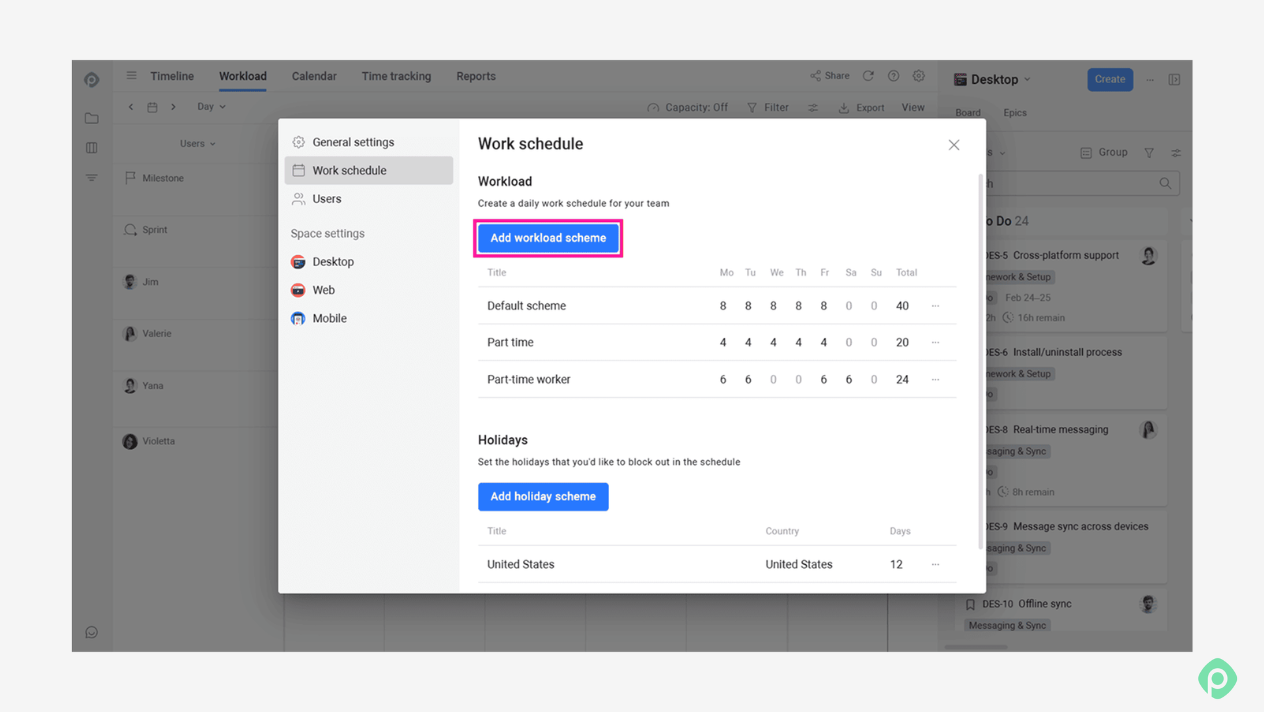
- Plan from real availability. Set working hours for each day of the week with workload schemes, part-time schedules included.
- Account for time off. Pick the country a person works in to apply its holidays, and add vacations or days off right on the timeline.
- Split shared work. Divide one work item between several people, each with their own estimate that counts toward their workload.
Best practices for allocating people in Jira: a step-by-step process
Our example: Priya manages six engineers who run two projects simultaneously, a Checkout redesign and a Partner API, and also cover a support rotation. Tom is one of her developers. Every step below works in native Jira. Where a planning app changes a step, we'll show what that looks like in Planyway.
1. Estimate in hours, at least for allocation
Story points work for sizing within one team, but "How much of Tom's week will this take?" can't be answered in points. A person's week is measured in hours.
Scrum teams can keep points for velocity and fill in the original estimate on work shared across projects. Just make sure every team sharing people uses the same time field, so Tom's 20 hours on Checkout and 10 on the Partner API can be added up.
In company-managed projects, you can make the original estimate required by marking the Time tracking field as required in the field configuration. The team grumbles for a week, and after that everyone's estimates are in hours and you can add them up.
If your team is attached to story points, Planyway can map its estimates to Story points instead. For comparing people across projects, hours still give a clearer picture.
2. Fix the hours Jira thinks people have
Jira assumes three things about people's hours that you'll want to fix:
- The Capacity view starts from 40 hours. If Ana works four days a week, "Ana at 100%" means 40 hours of work on a 32-hour schedule. Allocate part-timers in hours, or treat 80% as their ceiling.
- Plans sets capacity per team. A public holiday or a vacation means lowering that sprint's capacity by hand.
- "1d" is a flat number. Jira's time tracking settings define the hours in a day: 8 by default. An estimate of "2d" is 16 hours for whoever does the work.
None of this knows about Tom's holiday on the 3rd or his day off on the 14th. Someone has to enter them by hand.
3. Agree on how non-project work shows up
Tom spends about six hours a week in meetings, and one week in four he's on support. Teams usually count that time in one of three ways:
- Create work items for it, like recurring "Meetings" tasks. Precise, but it clutters backlogs and skews velocity.
- Reserve the time with a "Support rotation" row in the Capacity view, or by lowering sprint capacity in Plans.
- Pad estimates so each work item carries its share of overhead.
Any of these works. Mixing them breaks allocation. If Priya reserves support time in capacity while the Partner API lead pads estimates, overhead gets counted twice or not at all. Pick one method for every team that shares people.
If you'd rather build the overhead into the schedule, set Tom's working hours in Planyway to about 7 a day instead of 8, and every workload calculation starts from his real project time.
4. Sequence work instead of splitting people
When two projects need Tom, the reflex is to give each 50% of his time. Say Tom has 30 productive hours a week, and each project needs 60 hours from him:
- Split 50/50: 15 hours a week on each, and both projects finish at the end of week 4.
- Sequenced: all his time goes to the Partner API, which is done at the end of week 2. Then Checkout, done at the end of week 4.
Checkout ships at the same time either way, and the Partner API ships two weeks earlier. That's before counting context switching, which eats into productivity even more. Sequencing costs nothing and gets one project out two weeks sooner.
In practice, sequencing means allocating in blocks of weeks and giving the matching work items start and end dates in the same order, so the project timelines follow the plan. Splitting still has its place, say when one project is waiting on reviews. Just make it a deliberate call, based on which project matters more.
5. Check that Tom's work items fit the allocation
"Tom: 15 hours a week on Checkout" in the Capacity view is a promise. It turns into a plan only when the Checkout work items assigned to Tom add up to about 15 hours a week, next to his Partner API work and anything from other projects.
Natively, this check is hard. Capacity doesn't look below the epic, boards show work items rather than Tom's weekly hours, and Plans compares estimates with a team-level number. On top of that, Capacity and the assignee field don't sync, so nothing tells you when they drift apart.
In Planyway, Tom's work items from both projects sit in one lane, measured against his own schedule, and split work keeps a separate estimate for each person. A clash between Checkout and the Partner API shows up in the week it happens. The Workload Report then shows scheduled work as a percentage of capacity, so you can see how full each week is.
6. Don't treat 100% as fine
In the Capacity view, a bar turns red only above 100%. A week planned at exactly 100% looks fine and leaves no room for an incident or an estimate that's 30% too low.
There's no universal buffer. A good starting point is to allocate project work to 80–85% of real hours and treat that as your red line. That way you spot bottlenecks while there's still time to move something.
7. Review weekly, and compare the plan with logged time
Allocations go stale within a couple of weeks as new tasks land and scope shifts. A short weekly pass is enough: who's over, who's under, and which allocations no longer match the scheduled work.
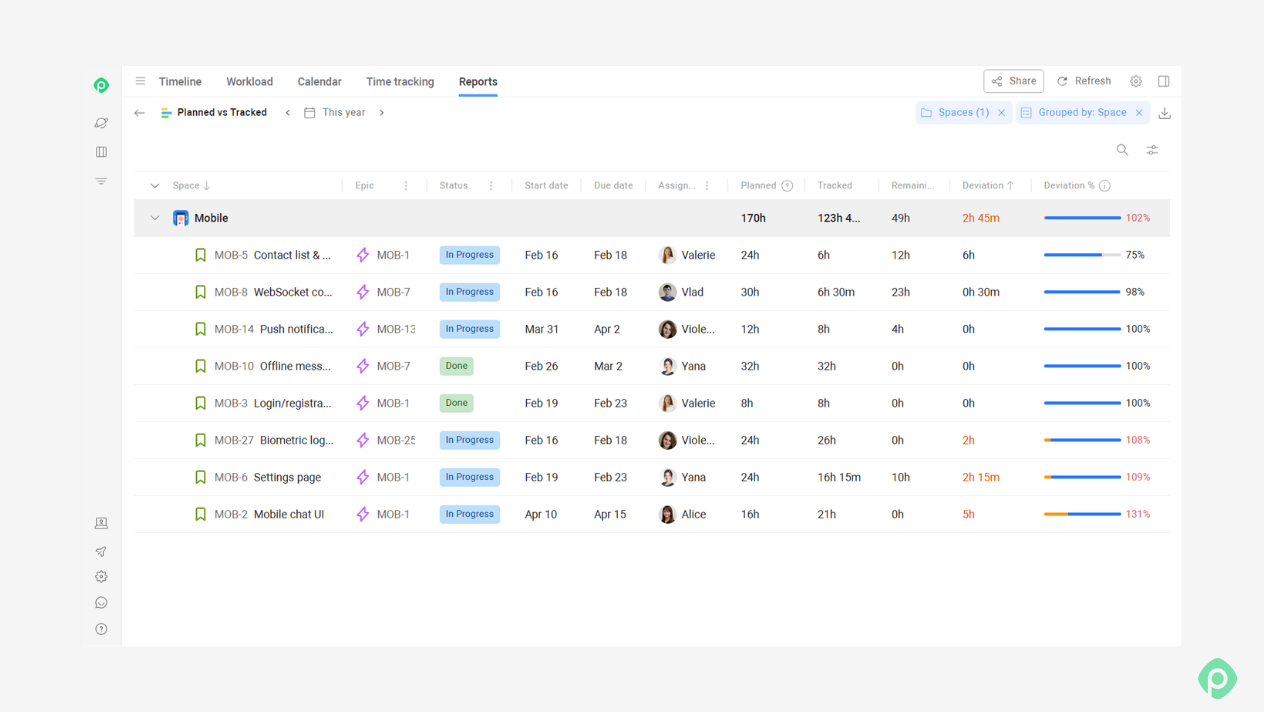
At the end of a project, compare Original Estimate with Time Spent, and each person's allocation with the hours they logged. Teams that staff from templates ("an API integration needs two backend developers for six weeks") gain the most here, as long as they update the template when it turns out to be wrong. Otherwise, they sell the same project five times and miss the date five times.
The bottom line
Proper resource allocation in Jira is a habit more than a setting: honest hours, one agreed way to count overhead, visibility across projects, and a weekly check that the plan still matches reality.
The plan is a tool. The goal is people working on the right things at the right time, toward the project's objectives, without a 125% week hiding in next month's schedule. Jira holds the work data, and a planning layer shows how it lands on each person's calendar. Deciding what gives when everything can't fit is still your call.


FAQ
Resource allocation adds hours and weeks to “who works on what”. That helps you manage resources effectively: spot over-allocation before a sprint starts, balance workloads across multiple teams, and give stakeholders dates based on available resources.
Examples of resource allocation include a project-level allocation such as “Ana: 60% Partner API, 20% support, 20% Checkout for Q4”; a work-item-level allocation such as “Tom: 24 hours of Checkout work items in week 42”; and reserving one engineer a week for on-call, which allocates limited resources to non-project work.
You can do resource allocation in Jira without Premium only partly. On Standard you can assign work, estimate in hours, and use gadgets and the User Workload Report to manage project resources at a basic level. Plans and the Capacity view need Premium or Enterprise. Marketplace apps add per-person workload on Standard as well.
Natively, Plans and the Capacity view are the best tools for resource allocation in Jira. Apps such as Planyway add person-level workload, working schedules, and time off. There's no perfect tool for every team. If you need portfolio management and finance, look at the larger suites. If you mostly need to manage resources week to week, a workload timeline usually covers it. It helps you use resources effectively and improve efficiency without a heavy setup.